Setting up payment processing on your WordPress site sounds straightforward until you encounter the terminology. Payment gateways. Payment processors. Merchant accounts. Acquiring banks. Each term describes a different piece of the payment infrastructure, and not understanding the difference leads to choosing the wrong tools and building a checkout experience that costs you sales.
This guide cuts through the confusion. It explains exactly how WordPress payment processing works, which gateway and plugin to use based on what you are selling, how to set everything up correctly, and how to verify it is working before your first real customer tries to buy from you.
WordPress payment processing is the system that allows websites to securely accept online payments. It works through three key components: a payment gateway that encrypts payment data, a payment processor that authorizes and transfers funds, and a merchant account that receives payments before they are deposited into your business bank account.
When a customer makes a purchase, these components work together to verify the transaction, process the payment, and complete the order within seconds.
Services such as Stripe and PayPal simplify the process by combining all three functions into a single account, making payment processing easy to set up for WordPress site owners.
How WordPress Payment Processing Works?
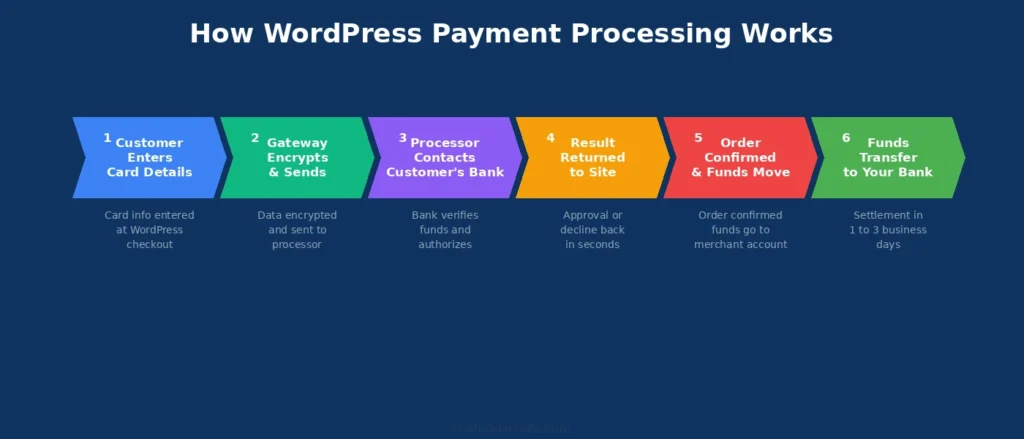
Understanding the flow of a payment prevents setup errors and helps you diagnose problems when they occur.
The Payment Gateway
The payment gateway is the security and communication layer between your checkout page and the payment network. When a customer clicks Pay Now, the gateway:
- Encrypts the card data using TLS (Transport Layer Security) so it cannot be intercepted in transit
- Tokenizes the card number, replacing it with a non-sensitive token that your site stores instead of the actual card details
- Sends the encrypted authorization request to the payment processor
- Returns the approval or decline result to your checkout page
The gateway makes it safe to accept online payments. Your WordPress site never stores raw card numbers. The gateway handles all sensitive data, keeping your site out of the most stringent PCI DSS compliance requirements.
The Payment Processor
The payment processor operates in the background. It receives the authorization request from the gateway and routes it to the appropriate card network (Visa, Mastercard, American Express). The card network checks the request against the customer’s issuing bank, which verifies available funds and approves or declines the transaction. The result travels back through the same chain in under two seconds.
The Merchant Account
A merchant account is a special type of bank account that holds authorized funds before they are transferred to your regular business account. Traditional merchant accounts require a separate application with a bank or payment processing company. Modern services like Stripe, PayPal, and Square include a built-in merchant account as part of their service, removing this requirement for most small businesses.
Need Your WordPress Payments Set Up Properly?
Seahawk configures complete WordPress payment processing setups for stores, membership sites, service businesses, and nonprofits. No contracts. No retainers.
Choosing the Right WordPress Payment Setup for Your Use Case
The right payment plugin depends on what you are selling. Using the wrong plugin adds unnecessary complexity or costs you features you need.
Physical Product Store
Use WooCommerce with Stripe (via WooPayments or the Stripe plugin) or PayPal (via PayPal Payments).
WooCommerce is the standard platform for selling physical products on WordPress. It handles product listings, inventory, shipping calculations, tax, and order management. Payment gateways integrate directly into WooCommerce’s checkout flow.
Install WooPayments (powered by Stripe) for the most seamless integration. It is built on WooCommerce, requires no third-party plugins, and supports all major card networks, Apple Pay, and Google Pay from a single settings panel.
Digital Downloads and Software
Use Easy Digital Downloads (EDD) with Stripe or PayPal.
EDD is purpose-built for selling digital files: ebooks, courses, software, design assets, and audio files. It handles file delivery after purchase, download limits, software licensing, and purchase history. It is significantly lighter than WooCommerce for digital-only stores.
Membership Sites and Subscriptions
Use MemberPress with Stripe or PayPal, or WooCommerce with WooCommerce Subscriptions.
Subscription payments require a payment gateway that supports recurring billing. Stripe handles this natively. PayPal requires the PayPal Commerce Platform integration (not legacy PayPal Standard). MemberPress manages access levels, content restrictions, and subscription management, along with recurring billing.
Service Businesses and Invoice Payments
Use WP Simple Pay (for one-time and recurring payments without a full store) or WPForms with Stripe (for payment forms embedded in contact or quote forms).
Service businesses rarely need a full product catalog. WP Simple Pay creates a clean, minimal payment form that handles one-time charges, payment plans, and recurring billing without WooCommerce overhead.
Nonprofits and Donations
Use Charitable or GiveWP with Stripe or PayPal.
Both plugins are built specifically for nonprofit fundraising. They handle donation goal tracking, recurring donations, fund management, and donor records. They also support anonymous giving, tax receipt emails, and donation reporting features that general payment plugins do not include.
Best WordPress Payment Gateways Compared
| Gateway | Transaction Fee | Monthly Fee | Recurring Payments | Best For |
| Stripe | 2.9% + $0.30 | None | Yes | Most WordPress sites |
| PayPal | 3.49% + $0.49 | None | Yes (Commerce Platform) | Sites with PayPal-preferring customers |
| Square | 2.9% + $0.30 | None | Yes | Sites with in-person + online sales |
| Authorize.Net | 2.9% + $0.30 + $25/month | $25 | Yes | High-volume established businesses |
| Klarna | Variable | None | Buy now, pay later | eCommerce stores targeting younger buyers |
| Braintree | 2.59% + $0.49 | None | Yes | High-volume stores needing lower rates |
Stripe is the recommended starting point for most WordPress sites. It has no monthly fees, the lowest standard transaction rate among major gateways, native support for recurring payments and subscriptions, and the widest plugin ecosystem. It also offers Stripe Radar for fraud protection and automatically handles SCA compliance for European customers.
PayPal remains worth adding alongside Stripe, as a meaningful segment of online buyers prefers to pay with PayPal. Research consistently shows that offering PayPal alongside card payments increases conversion rates by 5% to 10%.
Best WordPress Payment Plugins Compared
| Plugin | Best For | WooCommerce Required | Starting Price | Recurring Payments |
| WooPayments | Physical product stores | Yes | Free | Yes |
| Easy Digital Downloads | Digital file sales | No | Free / $99/year | Yes |
| WP Simple Pay | Services, invoices, simple forms | No | $99/year | Yes |
| MemberPress | Membership sites | No | $179/year | Yes |
| GiveWP | Nonprofit donations | No | Free / $149/year | Yes |
| Charitable | Nonprofit campaigns | No | Free / $149/year | Yes |
| WPForms Pro | Payment forms embedded in any page | No | $199/year | Limited |
| Gravity Forms | Complex conditional payment flows | No | $59/year | Via add-on |
How to Set Up WordPress Payment Processing?
Start with SSL and WP Mail SMTP before touching any payment settings. Those two steps prevent the most common post-launch problems regardless of which gateway you use.
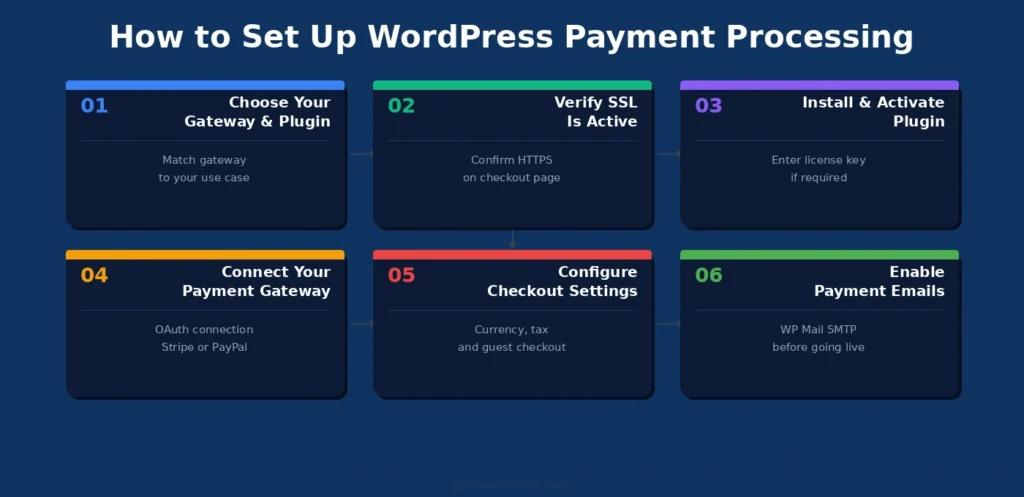
Step 1: Choose Your Gateway and Plugin
Based on the use case table above, identify which combination fits your site. The most common setup for a new WordPress site is:
- WooCommerce + WooPayments for physical or mixed product stores
- WP Simple Pay + Stripe for service businesses and simple payment pages
- MemberPress + Stripe for membership and subscription sites
Step 2: Verify SSL is Active
Every payment setup requires HTTPS. Check that your site URL begins with https:// and that the padlock icon appears in your browser’s address bar. If not, install an SSL certificate through your hosting provider. Most managed WordPress hosts (Kinsta, WP Engine, DreamHost) include free SSL via Let’s Encrypt.
Go to Settings > General in your WordPress dashboard and confirm that both the WordPress Address and Site Address begin with https://. If they show http://, update them and flush your cache.
Step 3: Install and Activate Your Payment Plugin
Go to Plugins > Add New and search for your chosen plugin. Install, activate, and enter your license key if using a paid plugin.
Step 4: Connect Your Payment Gateway
For Stripe: Navigate to your plugin’s payment settings and click Connect with Stripe. Log in to your Stripe account (or create one at stripe.com) and authorize the connection. Your API keys populate automatically.
For PayPal: Navigate to your plugin’s payment settings and click Connect with PayPal. Use the PayPal Commerce Platform connection rather than legacy PayPal Standard. Log in to your PayPal Business account and authorize.
Enable test mode in your plugin settings before accepting live payments.
Step 5: Configure Your Checkout Settings
For WooCommerce:
- Go to WooCommerce > Settings > Payments and enable your chosen gateways
- Under WooCommerce > Settings > General, configure your base currency, tax settings, and store address
- Under WooCommerce > Settings > Checkout, enable guest checkout if appropriate for your business
For WP Simple Pay:
- Go to WP Simple Pay > Payment Forms > Add New
- Set your payment amount, currency, and billing interval (one-time or recurring)
- Configure your confirmation message and notification emails
- Embed the form on a page using the block or shortcode
Step 6: Enable Payment Emails
Every payment transaction should trigger automatic emails to both the customer and your business.
In WooCommerce, go to WooCommerce > Settings > Emails and enable:
- New Order (to your team)
- Order Processing (to the customer after payment)
- Order Completed (to customer after fulfillment)
- Refunded Order (to customer after refund)
Install WP Mail SMTP and connect it to a transactional email service (SendLayer, Brevo, or Gmail SMTP) before going live. WordPress’s default PHP mail function has poor deliverability. Without WP Mail SMTP, payment confirmation emails may end up in spam or not arrive at all.
PCI DSS Compliance for WordPress Site Owners
PCI DSS (Payment Card Industry Data Security Standard) is the security framework that governs how businesses handle card payment data. Compliance is required for any business that accepts, processes, or stores card information.
The good news for WordPress site owners using modern hosted gateways is that your compliance requirements are minimal.
When you use Stripe, PayPal, or Square, card data never touches your WordPress server. The gateway handles all sensitive data on its own PCI-compliant infrastructure. Your site is only responsible for:
- Maintaining HTTPS on all pages
- Keeping WordPress, plugins, and themes updated
- Using strong admin passwords and two-factor authentication
- Running regular malware scans on your hosting environment
If you are using a gateway that stores card data on your server, or if you are building a custom payment integration, your PCI DSS requirements are significantly more demanding. For most WordPress sites, using a hosted gateway like Stripe eliminates this complexity entirely.
How to Test Payments Before Going Live?
Never accept live payments until you have run a complete test of every payment scenario. Discovering a broken checkout on a real customer order is preventable.
Stripe Test Cards
Use these test card numbers with any future expiry date, any three-digit CVV, and any billing postcode:
| Card Number | Result |
| 4242 4242 4242 4242 | Payment succeeds |
| 4000 0000 0000 0002 | Card declined |
| 4000 0000 0000 9995 | Insufficient funds |
| 4000 0025 0000 3155 | Requires 3D Secure authentication |
PayPal Sandbox
Go to developer.paypal.com and create sandbox buyer and seller accounts. Switch your PayPal plugin to sandbox mode and use the sandbox credentials to run test transactions.
Pre-Launch Payment Checklist
- Test a successful payment end-to-end
- Verify the order confirmation email reaches the test email address
- Verify your team notification email arrives
- Test a declined card and confirm the error message is clear and helpful
- Test on mobile: Is the checkout usable on a 375px screen?
- Verify refund processing works from your plugin dashboard
- If subscriptions: confirm the subscription appears in your gateway dashboard with the correct renewal date
- Switch from test mode to live mode and verify that the settings are saved correctly
Common WordPress Payment Problems and How to Fix Them
Do not re-run a failed payment before understanding why it failed. Each issue below explains the root cause, so you fix the right thing the first time.
Payments Failing at Checkout
The most common cause is a misconfigured gateway or a plugin conflict. Check three things: confirm your API keys are for live mode (not test mode), verify SSL is active on your checkout page, and deactivate non-essential plugins to test for conflicts. If the failure only affects certain card types, check whether your gateway account has the relevant payment methods enabled in its dashboard.
Duplicate Charges
Duplicate charges usually occur when customers click the submit button multiple times while the payment is processing. Add a loading state to your checkout button so it becomes unclickable immediately after the first click. WooCommerce handles this automatically. For custom payment forms, add a disabled attribute to the submit button on first click via JavaScript.
SSL Certificate Errors at Checkout
If your SSL certificate is installed but customers see a security warning on your checkout page, check for mixed content: HTTP resources loading on an HTTPS page. Use your browser’s developer console to identify any HTTP assets. Update all resource URLs to HTTPS. The Really Simple SSL plugin automatically fixes mixed content issues on WordPress sites.
Payment Confirmation Email Not Received
This is almost always a deliverability issue with WordPress’s default PHP mail. Install WP Mail SMTP and configure it with a proper sending service (SendLayer, Brevo, or Gmail SMTP with an app-specific password). Send a test email from WP Mail SMTP > Tools > Email Test to confirm delivery before going live.
Final Thoughts on WordPress Payment Processing
WordPress payment processing isn’t as complicated as the terminology suggests. Modern gateways like Stripe and PayPal handle the technical complexity. WordPress plugins handle the integration. Your job is to choose the right combination for what you are selling, test it thoroughly before going live, and maintain a clean, updated site that keeps the checkout experience secure.
Start with SSL. Install WP Mail SMTP before touching payment settings. Choose your gateway based on your business model and your customers’ location. Test every scenario in sandbox mode. Launch.
If you need help setting up a complete WordPress payment flow for your store, membership site, or service business, Seahawk’s development team handles the full configuration.
Frequently Asked Questions About WordPress Payment Processing
What is the best payment gateway for WordPress?
Stripe is the best payment gateway for most WordPress sites. It has no monthly fees, a 2.9% + $0.30 per-transaction rate, native support for recurring payments and subscriptions, built-in fraud protection via Stripe Radar, and the widest plugin compatibility of any gateway. Adding PayPal alongside Stripe captures customers who prefer PayPal, which research suggests increases conversion rates by 5% to 10%.
Do I need WooCommerce to accept payments on WordPress?
No. WooCommerce is the right choice for physical product stores, but several lighter alternatives work better for other use cases. WP Simple Pay handles one-time and recurring payments without a full store. Easy Digital Downloads handles digital file sales. MemberPress handles subscription and membership payments. GiveWP and Charitable handle nonprofit donations. All work without WooCommerce.
Is WordPress payment processing secure?
Yes, when configured correctly. Modern hosted gateways like Stripe and PayPal handle all card data on their own PCI-compliant servers. Your WordPress site never stores raw card numbers. You are responsible for maintaining HTTPS on your checkout pages, keeping WordPress and plugins up to date, and running regular security scans. With these basics in place, WordPress payment processing is secure for businesses of any size.
How much does WordPress payment processing cost?
The cost has two components: the plugin and the gateway transaction fees. Plugin costs range from free (WooCommerce, EDD basic) to $199 per year for premium versions. Gateway fees are the ongoing cost: Stripe and Square charge 2.9% + $0.30 per transaction. PayPal charges 3.49% + $0.49. At $5,000 in monthly sales, the difference between Stripe and PayPal is approximately $295 per month. There are no setup fees for Stripe or PayPal.
How do I add a payment form to a WordPress page?
Install WP Simple Pay or WPForms Pro, connect it to your Stripe or PayPal account, create a payment form with your amount and currency settings, and embed it on any WordPress page using the plugin’s Gutenberg block or shortcode. WP Simple Pay is the most straightforward option for a clean, minimal payment form. WPForms is better when you need a payment form integrated with a contact or registration form.
What is PCI DSS compliance, and do I need it for my WordPress site?
PCI DSS (Payment Card Industry Data Security Standard) is the security framework governing how businesses handle card payment data. All businesses that accept card payments are technically subject to PCI DSS requirements. When using a hosted gateway like Stripe or PayPal, your compliance obligations are minimal because card data never touches your WordPress server. Maintaining HTTPS, keeping software up to date, and using strong authentication satisfy the requirements for most small WordPress businesses.
How do I test payments on my WordPress site before going live?
Enable test mode in your payment plugin settings. For Stripe, use test card number 4242 4242 4242 4242 to simulate a successful payment, and 4000 0000 0000 0002 for a declined card. For PayPal, create sandbox accounts at developer.paypal.com and use those credentials in your plugin’s sandbox mode. Run a complete checkout test, including the delivery of the order confirmation email, before switching to live mode.