You just built something impressive in Google AI Studio. The layout looks clean, the sections are well structured, and Gemini delivered exactly the kind of AI-generated design you had in mind. Now comes the question every new user hits at this point: how do you actually get this website onto WordPress and make it live?
That is where most people get stuck. Google AI Studio gives you HTML and CSS code, not a ready-to-activate WordPress theme. There is a gap between what AI Studio produces and what a WordPress site needs to function. The good news is that the gap is very bridgeable, and at Seahawk Media, we walk clients through this entire migration process regularly.
This guide covers three practical methods for converting your Google AI Studio website into a working WordPress theme, connecting Google AI Studio output to a fully functional WordPress integration, and handling the most common issues along the way.
TL;DR: Google AI Studio Website into a WordPress Theme
- Google AI Studio outputs HTML and CSS code, not a ready-to-use WordPress theme.
- To go live on WordPress, you need to convert that output into proper PHP template files.
- You can do this via a WordPress conversion service, manually, a page builder, or an automated tool.
- AI-generated code often has broken file paths, missing responsive styles, and absent WordPress hooks that need fixing before deployment.
- For most users, a professional WordPress conversion service like Seahawk Media is the fastest and most reliable path to a live site.
What Google AI Studio Actually Produces When You Build a Site?
Before jumping into the conversion process, it helps to understand exactly what you are working with.
- Google AI Studio is a developer-focused workspace built on the Google Cloud Platform and designed around Google’s Gemini models. It is built to produce output, not explain design decisions.
- When you use it to generate a website layout, you get structured HTML and CSS code. Sometimes JavaScript, too, depending on what you built.
- That output is genuinely useful. It is real, working code you can open in a browser right now.
However, a WordPress site does not run on raw HTML files. WordPress runs on a theme system made up of PHP template files, a stylesheet with a specific header format, and a functions file that tells WordPress how to load everything.
No coding is required to follow this guide, but understanding this structure helps avoid confusion later.
Here is what the difference looks like in practice. What AI Studio gives you is index.html, style.css, and supporting assets.
What WordPress themes actually need are style.css with a theme header, index.php, header.php, footer.php, functions.php, and template tags that connect to the WordPress database and pull content dynamically.
Converting your AI Studio output into a WordPress theme bridges that gap. There are a few ways to do it, and the right method depends on your comfort level with code and the amount of manual effort you want to invest.
Easy Methods for Converting a Google AI Studio Website into a WordPress Theme
Your AI-built website deserves more than just a prototype. Use these simple methods to turn it into a powerful WordPress theme.
Method 1: Use a Professional WordPress Conversion Service
The fastest and most reliable way to convert a Google AI Studio website into a WordPress theme is to use a dedicated WordPress conversion service.
You hand over your AI-generated HTML and CSS, and a professional team delivers a fully structured, production-ready WordPress theme without you having to touch a single PHP file.

A WordPress conversion service goes well beyond just moving code from one place to another. Here is what a good service typically includes:
- Converting your AI Studio HTML and CSS into clean, properly structured WordPress template files
- Setting up meta descriptions, meta tags, and heading hierarchy so the site is ready for search engines from day one
- Testing the layout across browsers and devices to make sure everything is fully responsive
- Configuring Rank Math so your SEO foundation is in place before launch
- Handling additional integrations like WooCommerce, Weglot for multiple languages, or custom post types, if your project needs them
This matters because AI Studio code is built for browser previews, not production WordPress environments. Hardcoded file paths, missing responsive breakpoints, and absent WordPress hooks are issues that only surface once you try to deploy the output on a real WordPress site. A conversion service catches and fixes all of that as part of the workflow.
If you are looking for a trusted WordPress conversion service, Seahawk Media is a strong choice. Our team has over a decade of experience converting AI-generated designs into fully functional WordPress themes for businesses, freelancers, and agencies.
For agencies specifically, we also work as a white-label partner, handling the technical side while you stay the face of the project. Reach out, share your Google AI Studio output, and get a clear scope and timeline before any work begins.
Turn Your AI Design into a Real WordPress Website
From AI-generated layouts to functional WordPress themes, we help you convert, refine, and launch with clean code and performance in mind.
Method 2: Converting Your Google AI Studio Code into a WordPress Theme Manually
This method gives you full control over the output. It takes more steps, but the result is a clean, custom theme built entirely from your AI Studio design. If you are comfortable in a code editor, this is the most rewarding approach and involves the least reliance on other platforms.
Step 1: Create Your Theme Folder and Core Files
Open your WordPress installation and navigate to the wp-content/themes/ directory. Create a new folder and name it after your theme. Inside that folder, create five files: style.css, index.php, header.php, footer.php, and functions.php. These are your core template files. You can start with them blank and fill each one in as you go.
Step 2: Set Up the style.css Header
WordPress identifies your theme through a comment block at the very top of style.css. This is also where you include meta tags and basic theme information that WordPress reads to recognize and display your theme. It looks like this:
/*
Theme Name: My AI Theme
Theme URI: https://yoursite.com
Author: Your Name
Author URI: https://yoursite.com
Description: Custom WordPress theme converted from Google AI Studio
Version: 1.0
License: GNU General Public License v2 or later
*/
After this header block, paste in the CSS from your AI Studio output. This tells WordPress that the folder is a valid theme and loads your design styles into the WordPress system in a single step.
Step 3: Split Your AI Studio HTML into Template Parts
Open the index.html file from your AI Studio project. You are going to divide it into three sections that map to WordPress template files.
- Everything before your main content area, including the navigation, site header, and opening HTML tags, gets copied into header.php.
- Everything after the main content closes, including the footer section, closing tags, and any footer scripts, goes into footer.php. The main content area itself goes into index.php.
Once those template files are filled in, replace the static HTML with WordPress template tags.
- In header.php, add <?php wp_head(); ?> before the closing head tag. At the top of index.php, add <?php get_header(); ?>.
- At the bottom, add <?php get_footer(); ?>. Between those two calls, add the WordPress Loop so posts and pages load correctly:
<?php if ( have_posts() ) : while ( have_posts() ) : the_post(); ?>
  <h1><?php the_title(); ?></h1>
  <?php the_content(); ?>
<?php endwhile; endif; ?>
This is how WordPress knows to generate a new post, display a new comment, or create a new category page dynamically from the database. Without the Loop, your theme only shows static content.
Step 4: Enqueue Styles in functions.php
Do not hardcode your CSS file path in the HTML. That approach breaks as soon as the theme moves to a different environment.
Instead, open functions.php and add this:
<?php
function my_ai_theme_styles() {
  wp_enqueue_style( 'my-ai-theme-style', get_stylesheet_uri() );
}
add_action( 'wp_enqueue_scripts', 'my_ai_theme_styles' );
This tells WordPress to load your stylesheet via its own system, ensuring file paths remain consistent no matter where the site is hosted. It also supports future plugin compatibility without any extra manual effort on your part.
Step 5: Upload, Activate, and Test
Select all the files in your theme folder, then compress them into a zip file. Go to your WordPress dashboard, navigate to Appearance, then Themes, and click Add New.
- From the dropdown menu, select Upload Theme.
- Locate your zip file and click Install Now, then Activate.
Check the site on both desktop and mobile. Open Chrome DevTools in your browser to look for any broken asset paths or layout shifts.
At this point, your Google AI Studio website design should be visible on a live, fully functional WordPress site.
Method 3: Recreating Your AI Studio Design Using a WordPress Page Builder
Not everyone wants to work in PHP files. If that is you, this method is much more approachable. The idea is to use your AI Studio design as a visual reference and rebuild the layout inside a WordPress page builder, with no coding required.
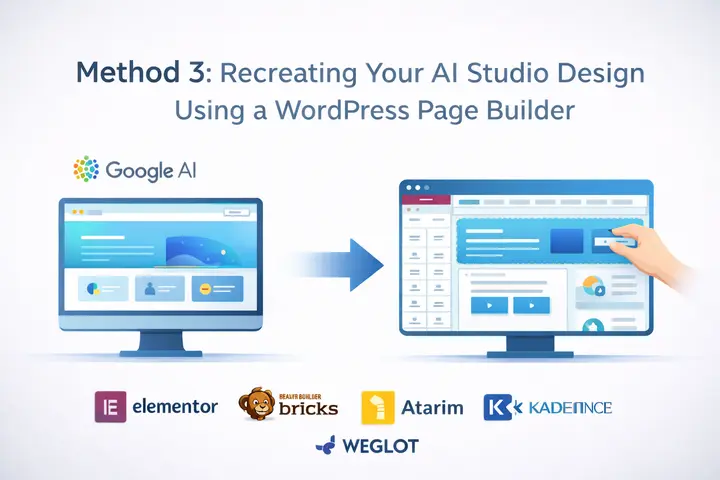
Elementor, Beaver Builder, and Bricks are all solid choices here. You open your AI-generated design in one browser window and your page builder in another, then recreate each section by drag and drop. You can rebuild headers, hero sections, feature rows, and footers entirely visually.
This approach works especially well for freelancers and agencies managing client websites.
- Atarim is worth mentioning here because it allows client feedback and collaboration directly on the WordPress site as you build, keeping the entire process organized.
- KadenceWP pairs well with this method because it performs well and has a clean block structure.
- If you are building sites that need global reach and support for multiple languages, page builders also make it much easier to integrate tools like Weglot for translation.
File uploads, product descriptions, and dynamic content areas may still require manual configuration after the initial build, but the core layout work is done visually.
The trade-off is that your final theme will be tied to the page builder you choose. That is fine for most projects, but it is worth knowing before you start.
Method 4: Using an AI-Powered Conversion Tool
If you want to move fast and skip the manual file setup, there are tools built specifically to integrate Google AI Studio output with WordPress. WPConvert.ai is designed to convert AI-generated websites, including output from Google AI Studio, directly into WordPress themes.
- You paste or upload your HTML and CSS, and the tool generates a WordPress-compatible theme structure you can download and activate. The workflow is genuinely quick.
- For agencies managing multiple projects at once, this kind of automation reduces significant manual effort and delivers real-time savings. The honest caveat is that these tools still produce output that benefits from a light review pass.
- Dynamic elements like navigation menus, contact forms, and new features you add post-launch will need to be connected manually after the theme is imported.
Think of conversion tools as a fast path to a working starting point, not a finished product. They work best when your AI Studio output is clean and well-structured, and when you need to move a project forward quickly without any coding required on your end.
How to Connect Google AI Studio to WordPress for AI-Generated Content?
Beyond theme conversion, many teams want to use Google AI Studio to generate content and push it directly into their WordPress site. This is a different kind of WordPress integration that uses the Gemini API to establish an active connection between the two platforms.
- To connect Google AI Studio to WordPress, start by generating an API key inside your AI Studio account.
- Navigate to the API section, create a new key, and save it in a secure location. This API key is what lets external apps and services communicate with Google’s AI models through your account.
On the WordPress side, use a plugin that supports custom API connections to paste in your key and API endpoint.
Once the integration is live, you can generate blog posts, meta descriptions, product descriptions, and other AI-generated content directly from your WordPress dashboard. This eliminates the need to copy and paste between a browser tab and your editor for every new post.
For teams that want a more advanced workflow, tools like n8n let you automate the entire process. You can set triggers so that a new post draft appears in WordPress automatically based on rules you define.
The setup takes some configuration, but it puts the full power of advanced artificial intelligence into your editorial workflow without ongoing manual effort.
Is a Child Theme a Better Option for Your Use Case?
Sometimes the right answer is not building a new theme from scratch.
If your AI Studio design closely resembles an existing WordPress theme, building a child theme is faster and easier to maintain in the long term. This is especially true for new users who are still learning how WordPress themes and template files work.
The idea behind a child theme is that it inherits all the functionality of a parent theme while letting you override just the parts you want to change. You apply your AI Studio CSS on top of an established, well-coded base. Future updates to the parent theme do not overwrite your customizations, which matters a lot over the life of a site.
GeneratePress and KadenceWP are both excellent parent themes for this approach. They are lightweight, actively maintained, and give you clean CSS to work with. The setup only requires two files: a style.css file with the Template field set to the parent theme, and a functions.php file that enqueues the parent’s stylesheet before loading yours.
/*
Theme Name: My AI Child Theme
Template: generatepress
Version: 1.0
*/
<?php
function my_child_theme_styles() {
wp_enqueue_style( 'parent-style', get_template_directory_uri() . '/style.css' );
}
add_action( 'wp_enqueue_scripts', 'my_child_theme_styles' );Once you upload and activate this child theme, all your AI-generated CSS will apply on top of the parent theme. You can also add new features to functions.php without affecting the parent theme’s core code, which keeps the entire process clean and maintainable.
SEO Considerations When You Convert a Google AI Studio Website
Getting the WordPress integration right is only part of the job. You also need to make sure your converted theme performs well in search engines. AI-generated code does not automatically include the SEO structure WordPress and Google expect.
- After you activate your theme, install Rank Math to manage your meta descriptions, meta tags, and page-level SEO settings. These tools let you set focus keywords, preview how each page appears in search engines, and generate sitemaps without touching any code.
- Make sure your template files also include proper semantic HTML. Headings should follow a clear hierarchy. Images should have descriptive alt text.
- Page titles should reflect the content and naturally include the primary keyword.
If you are targeting global reach or multiple languages, Weglot integrates seamlessly with most WordPress themes and provides a translation layer that search engines can index separately for each language.
Common Problems When Converting AI-Generated Code to WordPress
Even clean AI Studio output encounters predictable issues when it’s migrated to WordPress. Here are the three you will encounter most often.
Styles Not Loading
The most common cause is a hardcoded path in your HTML pointing to a CSS file that no longer exists at that location on the server.
The fix is to replace any hardcoded stylesheet links with wp_enqueue_style() in functions.php and use get_stylesheet_directory_uri() to dynamically build the correct file path.
This is a one-time fix that resolves most styling issues throughout the process.
Images and Assets Not Displaying
AI Studio references assets using relative paths that made sense in a local project folder. Once those files move to a WordPress server, those paths break.
The solution is to upload your images to the WordPress media library and update the references in your HTML, or place assets inside your theme folder and use get_template_directory_uri() to reference them correctly.
WordPress also has a built-in drag-and-drop uploader that makes bulk file uploads easy to manage without an FTP client.
Layout Looks Different on Mobile
Google AI Studio does a good job generating structured HTML, but the CSS it produces is not always fully responsive.
- Open your site in a browser using Chrome DevTools and switch to mobile preview to spot layout problems.
- Look for fixed widths, missing media queries, or elements that overflow their containers.
If you would rather not debug CSS manually, rebuilding the affected sections in Elementor or Beaver Builder is a faster path to a responsive result across all screen sizes.
Ready to Turn Your AI-Generated Design into a Live WordPress Site?
Converting a Google AI Studio website into a WordPress theme is completely doable, regardless of where you are starting from.
- The manual method gives you the most control over template files and code. A page builder removes coding entirely from the equation.
- A conversion tool automates the workflow when volume or timeline is the priority. And a child theme provides a maintainable foundation for a project with a longer life ahead.
The right method depends on your skill level, your timeline, and what you need the site to do in the future.
- If you would rather hand this off to a team that handles this regularly, Seahawk Media offers custom WordPress theme development and HTML-to-WordPress migration services.
Reach out, and we will scope what your project actually needs so that you can go from an AI-generated design to a fully functional live site without the guesswork.
FAQs About Google AI Studio to WP Conversion
Can I directly upload a Google AI Studio website to WordPress?
No. Google AI Studio outputs HTML and CSS files that cannot be uploaded directly to WordPress. You need to convert the code into a proper WordPress theme structure with PHP template files before it can be activated on a WordPress site.
Do I need coding skills to convert a Google AI Studio website into a WordPress theme?
Not necessarily. You can use a WordPress conversion service like Seahawk Media or a page builder like Elementor or Bricks to handle the conversion without writing any code. The manual method does require basic knowledge of PHP and CSS.
How long does it take to convert a Google AI Studio website into a WordPress theme?
It depends on the method. A professional WordPress conversion service typically delivers within a few days. The manual method can take several hours to a full day, depending on the complexity of your AI-generated design.
Will my AI-generated design look the same after converting to WordPress?
It should look very close to the original, but some adjustments are usually needed. AI-generated code is not always fully responsive and may have hardcoded file paths that break in a WordPress environment. A professional service handles these fixes as part of the conversion.