If you have ever opened someone else’s HTML file and felt completely lost inside a wall of tangled tags, you already understand why indentation matters. Learning how to indent in HTML is one of the first habits that separates a developer who writes code from a developer who writes readable code.
This guide covers both structuring your HTML document with proper code-level indentation and visually indenting text on your webpage using CSS properties.
TL;DR: Indenting in HTML
- HTML indentation works at two levels: code structure in your editor and visual text indentation on the rendered page
- Use two spaces per nesting level for code-level indentation and stay consistent throughout the file
- For visual text indentation, use text-indent for the first line only, margin-left to offset an entire block, and padding-left for indenting inside styled containers
- Never use or <blockquote> just to create a visual indent
- Use VS Code’s built-in formatter or Prettier to automate indentation across your entire team
Why Proper Indentation in HTML Matters?
Think about reading a book with no chapters, no paragraphs, and no spacing between sentences. That is exactly what unindented HTML looks like to any developer who has to work with it.
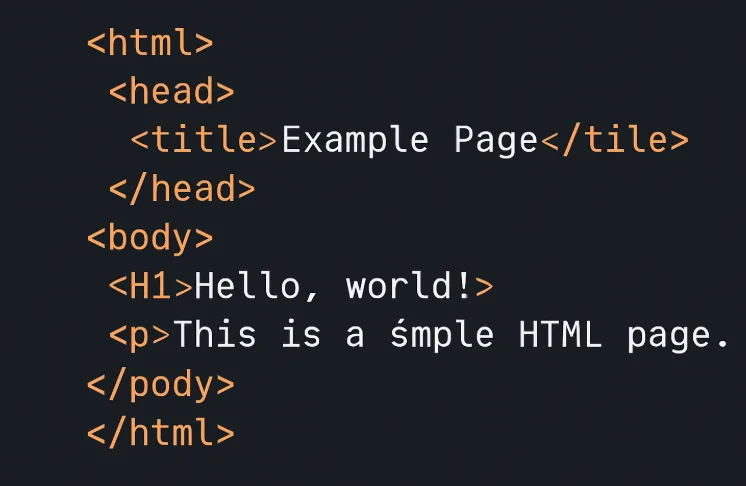
Proper indentation makes parent-child relationships between elements immediately obvious. It speeds up debugging because you can spot a missing closing tag at a glance.
It also makes collaboration far less painful because a new developer joining your team does not need to spend an hour deciphering your code structure before they can contribute.
Beyond readability, search engine crawlers parse your HTML to understand page structure. Clean, well-structured HTML helps crawlers accurately interpret your content hierarchy, which can indirectly support your SEO performance.
Clean Code Builds Better Websites
From semantic HTML to scalable WordPress development, we build websites that are clean, fast, and easy to maintain as your business grows.
Two Types of HTML Indentation You Need to Know
Before diving into techniques, it is worth clearing up a confusion that trips up many beginners. There are two distinct things people mean when they say “indent in HTML.”
- Code-Level Indentation refers to how your HTML tags are arranged inside your code editor. It does not affect what users see on the website. Its entire purpose is to make your code readable by visually representing the nesting hierarchy of elements.
- Visual Text Indentation refers to indenting content on the rendered webpage so your users see an actual indent on the page. This is controlled through CSS properties. Confusing these two leads developers to misuse elements like <blockquote> purely for visual effect, which creates real accessibility problems.
How to Indent Your HTML Code in the Editor?
Your code editor is where good indentation habits start. Getting the setup right from the beginning saves hours of debugging and reformatting down the line.
Understanding the Parent-Child Structure
HTML is a hierarchical language. When an element sits inside another, it becomes a child of that parent element. The child should always be indented one level deeper than its parent to make this relationship visible in your code.
Here is unindented HTML that works but is painful to read:
<div><h1>Page Title</h1><p>This is a paragraph.</p><ul><li>Item one</li><li>Item two</li></ul></div>Here is the same HTML with proper indentation applied:
<div>
  <h1>Page Title</h1>
  <p>This is a paragraph.</p>
  <ul>
    <li>Item one</li>
    <li>Item two</li>
  </ul>
</div>
The structure is instantly clear. The <h1>, <p>, and <ul> are all children of the <div>. The <li> elements sit one level deeper because they are children of the <ul>. Each level of nesting gets indented by the same amount consistently.
Two Spaces, Four Spaces, or Tabs?
The specific choice matters far less than consistency. Most HTML style guides default to two spaces per indentation level because HTML nests deeply, and four spaces can quickly push code far to the right.
The most important thing is to pick one style and use it throughout the entire project. Mixing two spaces in some files and four spaces in others creates messy version control diffs and friction in team environments.
Using VS Code to Automate Indentation
VS Code handles indentation very well out of the box. As you write HTML and press Enter after an opening tag, VS Code automatically indents the next line. If you open an existing file with inconsistent indentation, you can fix the entire document at once.
- On Windows, press Shift + Alt + F to format the whole document.
- On Mac, press Shift + Option + F.
For teams, the Prettier extension enforces indentation rules across every developer’s editor through a shared .prettierrc config file. This eliminates indentation-related merge conflicts and code review friction entirely.
How to Indent Text in HTML Using CSS?
Now for the part that affects what your users actually see: visually indenting text on the webpage. There are three main CSS properties you will use, and each one behaves differently.
The CSS text-indent Property
The text-indent property indents only the first line of a text block. It works on block-level elements like paragraphs and headings. All subsequent lines in the same element stay at the normal margin.
p {
  text-indent: 30px;
}
This indents the first line of every paragraph by 30 pixels. You can use different units depending on your layout. Pixels give you a fixed absolute indent.
Using em or rem ties the indent to the font size, which scales better across different screen sizes. Percentage values make the indent relative to the containing block width.
p {
  text-indent: 2em;
}
You can also use negative values to create a hanging indent effect, where the first line sticks out to the left while remaining lines are indented:
p {
  text-indent: -2em;
  padding-left: 2em;
}
Browser compatibility for text-indent is excellent across all modern browsers. No vendor prefixes are needed.
The margin-left Property
The margin-left property indents an entire block of content by shifting the whole element to the right. This is useful when you want to offset a full paragraph, section, or container rather than just its opening line.
.indented-section {
  margin-left: 40px;
}
The margin-left property works on almost any HTML element.
One thing to keep in mind: margins create space outside the element’s box, so they shift the element itself rather than just the text inside it. This matters in flexbox or grid layouts where spacing is already managed by the layout system.
The padding-left Property
The padding-left property creates space within an element’s content box, between the border and the content. This is the key difference from margin-left.
.callout-box {
  padding-left: 24px;
  background-color: #f5f5f5;
  border-left: 4px solid #0057ff;
}
If you used margin-left here instead of padding-left, the text would appear indented, but the background color and border would start at the original left edge, which looks broken.
The padding-left property keeps the styled container intact while moving the text inward. Use it whenever you are indenting text inside a container with a background, border, or a defined box model.
Indenting HTML Lists and Nested Elements
HTML lists have default indentation applied by browsers, but the exact amount varies between Chrome, Firefox, and Safari. For consistent, controlled results, define it explicitly in CSS:
ul, ol {
  padding-left: 24px;
}
For nested lists, apply additional indentation to the nested element to create a clear second level:
<ul>
  <li>Main item
    <ul>
      <li>Nested item A</li>
      <li>Nested item B</li>
    </ul>
  </li>
</ul>
By CSS controlling padding-left at each level, this produces a clean, two-tier indented list that looks consistent across every browser.
HTML Elements That Handle Indentation Natively
Some HTML elements come with built-in indentation behavior in browsers. Knowing when to use them correctly and when not to keeps your code accessible and semantically sound.
- The blockquote element displays indented by default in most browsers. Many developers misuse it purely for this visual effect. This is a mistake.
The <blockquote> element exists to mark up content quoted from an external source. Screen readers announce it as a quotation, so using it on non-quoted content misleads users who rely on assistive technology. Use it only for actual quotations and use CSS for everything else.
- The pre element preserves all whitespace, line breaks, and indentation exactly as they appear in your HTML file. This makes it essential for displaying code snippets and preformatted text where spacing carries meaning.
- Non-breaking spaces ( ) are a common beginner habit for creating quick indentation. The definitive answer is to never use them for this purpose. They do not scale; they break across different screen widths, and they cause unpredictable line-breaking on smaller screens. Always use CSS instead.
Common Indentation Mistakes to Avoid
Mixing tabs and spaces in the same file is the most common team-level mistake. It looks fine in one editor and completely broken in another. Configure your editor to convert tabs to spaces automatically or use Prettier to enforce a consistent style.
Using inline styles on every individual element instead of a reusable CSS class creates a maintenance nightmare.
Updating style=”margin-left: 40px” across twenty different paragraph tags in your HTML is painful work that a single CSS class would have eliminated entirely.
Indenting so deeply that lines wrap in the editor is a signal that the HTML structure itself needs simplifying, not just reformatting. If your code is pushing ten or twelve levels deep regularly, it is worth reviewing the structure itself.
Accessibility and Indentation
This is something most guides skip. Correct code-level indentation directly affects how accurately assistive technologies parse your page.
- When elements are nested correctly, and the HTML hierarchy is clean, screen readers can accurately identify landmarks, headings, and content regions.
- When elements are misused for their visual side effects, screen readers announce the wrong context to users.
Proper indentation also makes it much easier to audit your HTML for semantic correctness using tools like WAVE and axe DevTools.
Final Thoughts
Clean HTML indentation is one of those habits that pays back far more than it costs.
The time you spend formatting a project properly is returned every time you debug it, every time a new developer opens the file, and every time you revisit your own code months later and still understand it immediately.
At Seahawk Media, we build and audit websites where code quality directly affects performance, maintainability, and user experience.
If your website needs a code audit, a performance review, or a full development build, reach out to us, and let’s build something that works as well under the hood as it looks on screen.
Frequently Asked Questions
Does HTML indentation affect how a webpage looks to users?
Code-level indentation in your HTML file does not affect the rendered output at all. It only affects how the code is displayed in your editor. Visual indentation on the actual webpage is controlled by CSS properties such as text-indent, margin-left, and padding-left.
What is the difference between margin-left and padding-left for indentation?
The margin-left property creates space outside the element’s box, shifting the entire element to the right. The padding-left property creates space inside the element’s box, pushing the content away from the element’s left edge.
Use padding-left when the element has a background color or border that should remain aligned with its outer edge.
Should I use tabs or spaces for HTML indentation?
Most HTML style guides recommend spaces, with two spaces being the most common standard for HTML specifically. The most important thing is consistency throughout the file and across your team. Use Prettier to automatically enforce whichever style you choose.
Is it okay to use non-breaking spaces for indentation in HTML?
No. Using characters to create indentation is a bad practice. It does not scale, creates accessibility issues, and breaks on different screen widths. Always use CSS properties for any indentation that needs to appear on the rendered webpage.