
Most donation pages make the same mistake. They show a goal, a donate button, and nothing else. The visitor has no idea whether ten people have donated or ten thousand. They feel like they might be the only ones giving.
A donor leaderboard fixes this. It shows real names and real donations from real community members in real time. Research shows that 74% of donors are motivated to give more or donate outside their usual schedule when they feel strong community support. When visitors see others giving, they feel safe and motivated to join them.
This guide shows you exactly how to create a donor leaderboard in WordPress using three different methods, from a no-code plugin setup that takes under 20 minutes to a fully customized leaderboard for nonprofits with complex campaign needs.
A donor leaderboard in WordPress is a dynamic ranking display that showcases top donors based on donation amount, frequency, or recent contributions. It helps build trust, encourage participation, and recognize supporters publicly.
Most leaderboards display donor names, donation totals, rankings, and optional profile images, giving visitors visible proof that others are actively supporting the campaign.
Plugins such as Charitable, GiveWP, and Paymattic make it easy to add a donor leaderboard to WordPress without custom development.
Why Donor Leaderboards Work: The Psychology
Understanding why leaderboards work helps you configure them for maximum impact.
Social proof. When a first-time visitor sees that 847 people have donated to your campaign this month, they are far more likely to donate than if the page shows no participation data at all. People follow the actions of others, especially in uncertain giving decisions.
Fear of missing out. A leaderboard that shows momentum, a high number of recent donors, and a rising total creates urgency. Visitors who see active giving feel that the campaign is succeeding and want to be part of it.
Recognition and status. Appearing on a public leaderboard is a form of recognition. For some donors, especially recurring high-level contributors, the visibility of being in the top 10 motivates continued giving.
Competitive giving. When donors can see their rank relative to others, some are motivated to increase their donations to move up the leaderboard. This is particularly effective in peer-to-peer fundraising and corporate matching campaigns.
Best WordPress Plugins for Donor Leaderboards
| Plugin | Leaderboard Feature | Free Version | Starting Price | Best For |
| Charitable | Yes (Pro) | Yes (limited) | $149/year | Nonprofits needing full campaign management |
| GiveWP | Yes (via add-on) | Yes (limited) | $149/year | Complex multi-campaign fundraising |
| Paymattic | Yes (free + pro) | Yes | $59/year | Budget-conscious organizations |
| WPForms + Stripe | Manual display only | Yes | $199/year | Simple one-off donation forms |
| Formidable Forms | Custom leaderboard | Yes | $399/year | Advanced custom implementations |
For most WordPress nonprofit sites, Charitable or GiveWP is the right choice. Paymattic is the strongest free-tier option with its leaderboard available at no cost.
Need a Custom WordPress Donation Site Built Right?
Seahawk builds WordPress nonprofit and donation sites with donor leaderboards, campaign management, and payment gateway integration. No contracts. No retainers.
Method 1: Create a Donor Leaderboard With Charitable
Charitable is the most widely recommended WordPress donation plugin for nonprofits. The donor leaderboard feature is included in Charitable Pro and integrates natively with the Gutenberg block editor.

Step 1: Install and Activate Charitable
Go to Plugins > Add New in your WordPress dashboard. Search for Charitable. Install and activate the free version. Then go to Charitable > Settings and enter your Charitable Pro license key to unlock the leaderboard feature.
If you have not yet purchased Charitable Pro, sign up at wpcharitable.com. Plans start at $149 per year and include the donor leaderboard add-on.
Step 2: Create a Campaign
Go to Charitable > Campaigns > Add New. Give your campaign a name, set a fundraising goal, and configure your campaign end date if applicable. In the campaign editor, add a description that explains the campaign’s purpose and how donations will be used.
Under the Campaign Settings panel on the right, configure:
- Suggested donation amounts (these anchor donor giving behavior)
- Minimum donation amount
- Whether donations are one-time or recurring
- Currency and payment gateway
- Publish the campaign when your settings are complete.
Step 3: Enable the Donor Leaderboard
In your campaign editor, scroll to the Campaign Blocks section. Look for the Donor Leaderboard block and add it to your campaign page layout.
In the block settings panel on the right, configure:
Display settings:
- Number of donors to show (10 to 25 is the standard range)
- Sort order: by total amount (default), by number of donations, or by most recent
- Show or hide donation amounts next to donor names
- Show or hide donor avatars
- Anonymous donor display: choose whether to show “Anonymous” or exclude anonymous donors from the public display
Privacy settings: Enable the “Allow donors to choose anonymity” option in your donation form settings. This adds an opt-in checkbox to the donation form asking whether the donor wants to appear on the leaderboard. This is required for GDPR compliance on EU-facing campaigns.
Step 4: Embed the Leaderboard on Your Donation Page
Charitable embeds the leaderboard directly on the campaign page. If you want to display the leaderboard on a separate page, such as your homepage or a dedicated recognition page, use the Charitable Leaderboard block or shortcode:
[charitable_donor_leaderboard campaign_id=”YOUR_CAMPAIGN_ID” count=”10″]
Replace YOUR_CAMPAIGN_ID with the numeric ID of your campaign (visible in the URL when editing the campaign). Change the count value to control how many donors appear.
Add this shortcode to any WordPress page using the Shortcode block in the Gutenberg editor.
Step 5: Test the Leaderboard
Make a small test donation to your campaign using a test payment gateway (Stripe test mode or PayPal sandbox). Verify that your donor name appears on the leaderboard in the correct position. Check that the anonymity option works correctly by making a second test donation with it selected.
Method 2: Create a Donor Leaderboard With GiveWP
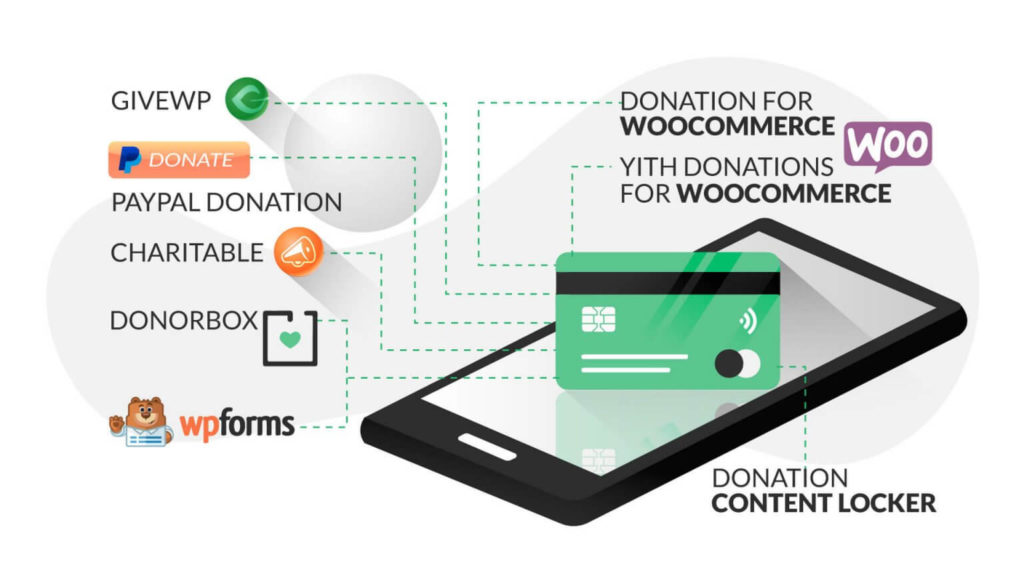
GiveWP is a comprehensive donation plugin with peer-to-peer fundraising, recurring donations, and leaderboard functionality available through its add-on library.
Step 1: Install GiveWP
Go to Plugins > Add New, search for GiveWP, and install the free version. The core GiveWP plugin handles donation form creation and management. The Leaderboard add-on is available in GiveWP’s paid plans.
Step 2: Create a Donation Form
Go to Donations > Add Form. Give your form a name and configure your donation levels, goal, and payment options. GiveWP supports multiple suggested donation amounts displayed as clickable buttons, which consistently increases average donation amounts compared to blank input fields.
Step 3: Enable the GiveWP Leaderboard
Purchase and activate the GiveWP Plus or All-Access plan. Go to Donations > Add-ons and install the Leaderboard add-on. Once activated, go to Donations > Settings > Leaderboard to configure your global leaderboard settings.
Configure:
- Ranking method: by total donated, by number of donations, or by campaign
- Display period: all-time, this year, this month, or custom date range
- Number of donors shown
- Avatar display preference
- Anonymous donor handling
Step 4: Display the Leaderboard
GiveWP provides a shortcode for embedding the leaderboard on any page:
[give_leaderboard form_id=”YOUR_FORM_ID” show=”10″]
Add this shortcode to your campaign page, homepage, or a dedicated donor recognition page. GiveWP’s Gutenberg block can also embed the leaderboard without a shortcode if you prefer a visual editing workflow.
Method 3: Create a Donor Leaderboard With Paymattic
Paymattic is the most affordable option with a functional donor leaderboard available on the free tier. It is the right choice for small nonprofits or organizations testing leaderboard functionality before investing in a premium plugin.

Step 1: Install Paymattic
Go to Plugins > Add New, search for Paymattic, and install. Activate the plugin from your dashboard. The free version includes Stripe payment integration, donation forms, and the leaderboard feature.
Step 2: Configure the Donation Leaderboard
Go to Paymattic > Settings in your WordPress dashboard. Select Donation Leaderboard from the left sidebar. Configure:
- Which campaigns to include in the leaderboard
- How many donors to display
- Sort order (highest total, most recent, or most frequent)
- Whether to show donation amounts publicly
- Anonymity settings
Step 3: Embed the Leaderboard
Use Paymattic’s shortcode to embed the leaderboard on any page:
[paymattic_leaderboard campaign_id=”YOUR_CAMPAIGN_ID”]
The leaderboard updates automatically as new donations arrive.
How to Design an Effective Donor Leaderboard?
A well-configured, poorly designed leaderboard will underperform. These design principles make your leaderboard more effective at converting.
Show Momentum, Not Just Totals
Display recent donors prominently, not just cumulative all-time leaders. A leaderboard that shows three donors who gave in the last hour creates urgency. One that shows the same donors who gave three years ago feels static and uninspiring.
Keep it Visible Without Being Overwhelming
The leaderboard should appear on your campaign page without competing with the donation form. Place it below your campaign description and goal progress bar, above the donation form. Showing 10 to 15 donors strikes the right balance between social proof and digestibility.
Use Avatars Where Possible
Leaderboards with real donor avatars (from Gravatar or social login) convert better than text-only lists. The human faces make the giving feel real and community-driven rather than abstract.
Add a “Join the leaderboard” CTA
Place a visible donation button directly below the leaderboard with the copy “Join [X] donors,” where X is the current donor count. This framing invites visitors to participate rather than simply observe.
Handle Anonymity Professionally
Display anonymous donors as “A Generous Supporter” or similar rather than simply “Anonymous.” This maintains the leaderboard count and social proof while respecting the donor’s privacy preference.
Where to Place Your Donor Leaderboard?
Placement determines how many visitors see your leaderboard and how it influences giving behavior.
| Placement | Impact | Best For |
| Active campaign page (above fold) | Highest | Single-campaign nonprofits |
| Homepage sidebar or section | High | Ongoing fundraising organizations |
| Dedicated donor recognition page | Medium | Recognizing major donors publicly |
| Thank-you page after donation | Medium | Showing new donors they are not alone |
| Email newsletter embed | Variable | Driving return donors back to campaign |
The highest-converting placement is on your active campaign page, positioned between your campaign description and your donation form. Visitors see community support before deciding whether to give.
Privacy and Compliance Considerations
Displaying donor names publicly has legal and ethical implications that must be addressed before launch.
Always provide an opt-out. Your donation form must give donors the choice to appear anonymously on the leaderboard. This is legally required for GDPR-compliant campaigns targeting EU donors and is ethical best practice globally.
Disclose in your form. Add a disclosure note near the donation submit button: “Your name and donation amount may appear on our donor leaderboard unless you select the anonymous option above.”
Do not display financial information without consent. Showing the exact donation amount next to a donor’s name is sensitive financial information. Most plugins allow you to display name and rank without showing exact amounts, providing social proof with fewer privacy concerns.
Keep donor data secure. Any plugin handling donor data, including names, emails, and payment information, must be kept up to date and configured to use HTTPS. Run regular security audits on your WordPress installation.
Final Thoughts on Creating a Donor Leaderboard in WordPress
A donor leaderboard is one of the highest-leverage additions you can make to a WordPress donation page. It costs minimal additional setup time, requires no custom development with the right plugin, and directly addresses the social isolation that prevents hesitant donors from giving.
Charitable Pro is the most comprehensive option for nonprofits building serious campaign infrastructure. GiveWP suits organizations with complex multi-campaign needs. Paymattic is the right starting point for organizations testing the concept on a limited budget.
Whichever plugin you choose, configure your anonymity settings before launch, test the leaderboard with a real donation, and place it on your campaign page where it is visible before the donate button.
If you need help building or customizing a WordPress donation site with a donor leaderboard, Seahawk’s development team handles the full build.
Frequently Asked Questions About Donor Leaderboards in WordPress
What is a donor leaderboard in WordPress?
A donor leaderboard in WordPress is a dynamic display of top donors, ranked by total donation amount, number of donations, or recency. It is embedded on a donation or campaign page to show visitors that real people are actively supporting the cause. Leaderboards build social proof and motivate new donors to give by showing community participation in action.
Which WordPress plugin is best for a donor leaderboard?
Charitable Pro is the best overall option for most nonprofits. It includes a native donor leaderboard block for Gutenberg, full campaign management, and GDPR-compliant anonymity settings. GiveWP is better for organizations with complex multi-campaign fundraising needs. Paymattic offers a functional leaderboard on its free tier, making it the best option for small organizations with limited budgets.
Can donors choose to remain anonymous on the leaderboard?
Yes. All major WordPress donation plugins that support leaderboards include an option for anonymity. Charitable, GiveWP, and Paymattic all allow donors to opt into anonymous display when submitting the donation form. Anonymous donors typically appear as “Anonymous Donor” or “A Generous Supporter” on the public leaderboard while still being counted in your total donor statistics.
How do I add a donor leaderboard to an existing WordPress page?
Use your donation plugin’s shortcode. For Charitable: [charitable_donor_leaderboard campaign_id=”ID” count=”10″]. For GiveWP: [give_leaderboard form_id=”ID” show=”10″]. For Paymattic: [paymattic_leaderboard campaign_id=”ID”]. Add the shortcode to any WordPress page using the Shortcode block in the Gutenberg editor. Replace “ID” with your campaign or form ID.
Does a donor leaderboard actually increase donations?
Yes. Research shows that 74% of donors can be motivated to give more or donate outside their usual schedule when they feel part of an active community. Leaderboards create social proof (others are giving), urgency (active momentum), and recognition incentives (public acknowledgment of top donors). Most nonprofits that add a leaderboard to an active campaign page report increased conversion rates on donation forms.
What information should a donor leaderboard display?
A standard donor leaderboard displays the donor’s name or username, their rank (1st, 2nd, 3rd), and optionally their total donation amount and an avatar. Showing donation amounts is effective for motivating competitive giving, but raises privacy considerations. Most campaigns strike a balance by showing rank and name without exact amounts, preserving social proof while reducing sensitivity around financial disclosures.


