Elementor icons disappear for predictable reasons. Missing CSS files, outdated plugin data, caching conflicts, HTTPS mismatches, and server restrictions are the most common causes across WordPress sites in the US and globally.
This guide covers every cause and the exact fix for each one, so you can restore your icons without guesswork.
Elementor icons may fail to display due to missing icon libraries, outdated plugin files, caching conflicts, incorrect file permissions, or issues with font loading. Resolving the problem typically involves regenerating Elementor assets, clearing caches, updating plugins, and verifying that icon font files load correctly. Checking browser developer tools can also help identify blocked resources or loading errors that prevent icons from appearing.
What is the Icon Box in Elementor?
The Icon Box is an Elementor widget that combines an icon, title, and description in a single element. You use it to highlight features, services, or key information on any page. It supports Font Awesome, Material Design, and custom icon libraries, and you can adjust size, color, and placement directly in the Elementor editor without touching any code.

Here’s what you can do with the Icon Box:
- Pick Your Icon: Whether you like the ones from Font Awesome, Material Design, or you have a unique icon, the choice is yours.
- Make It Yours: Want the icon a bit bigger? A different color? No problem. You can adjust its size, change its hue, and experiment with its appearance. Plus, you get to write your title and description.
- Drag, Drop, and Done: You don’t need to be tech-savvy to use it. Simply drag the Icon Box widget to the desired location on your page or post, and you’re all set.
Elementor Icons Still Not Showing? Don’t Panic!
Our expert WordPress support team can help troubleshoot this issue. Get in touch today.
Having Trouble with Icons in Elementor? Here’s a Checklist to Help
If your icons are not visible, follow this quick checklist to identify the possible error and restore them before trying more advanced fixes.
- Update Elementor: Just like updating your phone apps, software sometimes needs a refresh. Ensure your Elementor is up to date.
- Check the Icon Library: Go to Elementor, then Settings, then Advanced, and confirm the Font Awesome option is enabled. If it is turned off, icons will not display regardless of other settings.
- Test for Plugin or Theme Conflicts: Temporarily deactivate your other plugins and switch to a default WordPress theme, such as Twenty Twenty-Four. If icons reappear, reactivate plugins one by one to identify the conflict.
- Clear All Caches: Clear your browser cache and your caching plugin cache. Also, regenerate Elementor’s files under Elementor> Tools> Regenerate Files and Data to ensure fresh assets are loaded.
- Test in a Different Browser: Some browsers handle font loading differently. Test your page in Chrome, Firefox, and Safari to confirm whether the issue is browser-specific or site-wide.
- Check Your CDN Settings: If you use a CDN, it may be blocking font files that Elementor icons depend on. Temporarily disable the CDN and test whether icons load. If they do, contact your CDN provider to whitelist the required font file types.
Tips to Fix Elementor Icons Not Showing
It can be baffling when Elementor’s custom icons decide to play hide-and-seek on your website.
Most Elementor icon problems come down to one of two causes: recent changes to the plugin that affect how icons load, or icons missing from the library entirely. The fixes below address both.
- Modifications to the Elementor Plugin: Any recent changes, updates, or customizations may require icons to be displayed correctly. This could be due to conflicts or incompatible settings.
- Icons Missing from the Library: On occasion, library icons may be missing or not loaded, causing them to disappear from your layouts.
Now that we’ve identified the probable culprits, let’s walk through the solutions to bring your icons back to the spotlight.
Issue 1: Changes in the Elementor Plugin
You may have recently updated or just installed the Elementor plugin, and now some Font Awesome icons aren’t displaying.
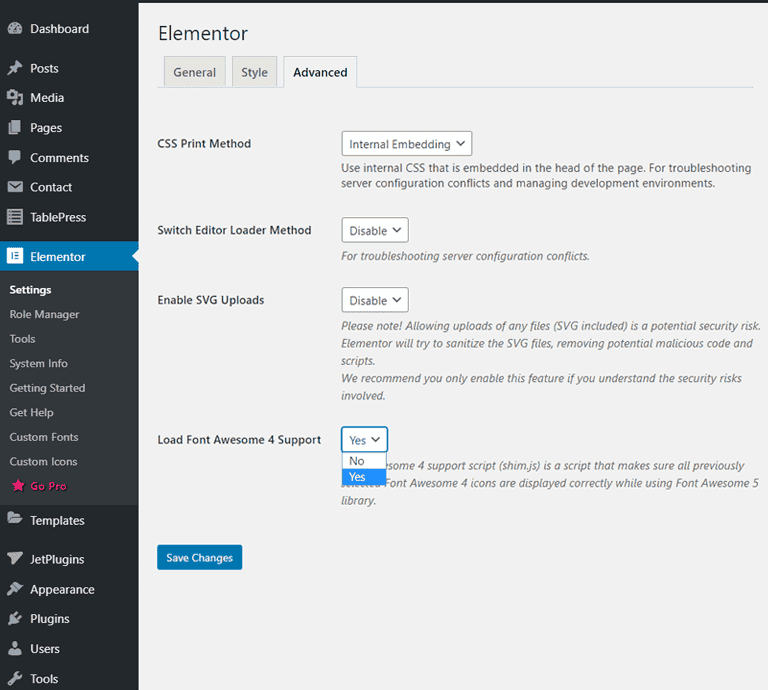
Here’s what you can do:
- Navigate to your WordPress dashboard.
- Choose “Elementor” from the sidebar and then select “Settings.”
- Click on the “Advanced” tab.
- Look for the “Load Font Awesome 4 Support” option. Enable it or ensure it’s activated.
Issue 2: Outdated Elementor CSS and Data Files
Sometimes, Elementor icons fail to load because the generated CSS files become outdated or corrupted after a plugin update or configuration change. When this happens, the icon font styles may not load correctly, leading icons to appear blank or invisible on the page.
Fortunately, Elementor provides a quick fix for this issue. Follow these steps to regenerate the files:
- Go to your WordPress dashboard and open Elementor.
- Click on Tools from the menu.
- Under the General tab, select Regenerate Files and Data.
- Click the button and allow Elementor to refresh the data.
This process rebuilds the CSS files stored in the database and updates the resources used to display icons. After completing these steps, reload your page and check whether the icons are now visible.
In many cases, this simple fix resolves the error without requiring further troubleshooting.
Issue 3: Mixed Content or HTTPS Configuration Issues
Another common reason icons do not appear is a mixed content problem. This happens when your website loads through HTTPS, but some icon files or font resources are still requested through HTTP.
Modern browsers block these requests for security reasons, which prevents the icons from loading.
Start by checking the WordPress address and site address in your general settings to ensure both use the correct https URL. If there is a mismatch, update the settings and save the changes.
You can also inspect the page in your browser’s developer tools to find blocked resources. If icon files are being blocked, update the URLs in your database or plugin settings.
Once all resources are loaded via HTTPS, the icons should become visible again.
Issue 4: File Permission or Server Configuration Problems
In some situations, the issue may come from your hosting or server configuration. Elementor icons rely on font files such as WOFF and TTF. If the server blocks these file types or the file permissions are incorrect, the icons may not load properly.
To resolve this, check the file permissions inside your WordPress installation, especially in folders that store Elementor resources. Permissions should allow the server to access these files.
You can also contact your hosting provider to confirm that the font files are not restricted by security rules. Some servers block certain resources by default, which can cause icons to appear blank.
Once the server allows access to the required files, Elementor icons should load normally across your website menu and pages.
Issue 5: Icons Disappear from the Library
Sometimes, icons in the Elementor icon library disappear, especially in templates that use “Nucleo Mini” icons.
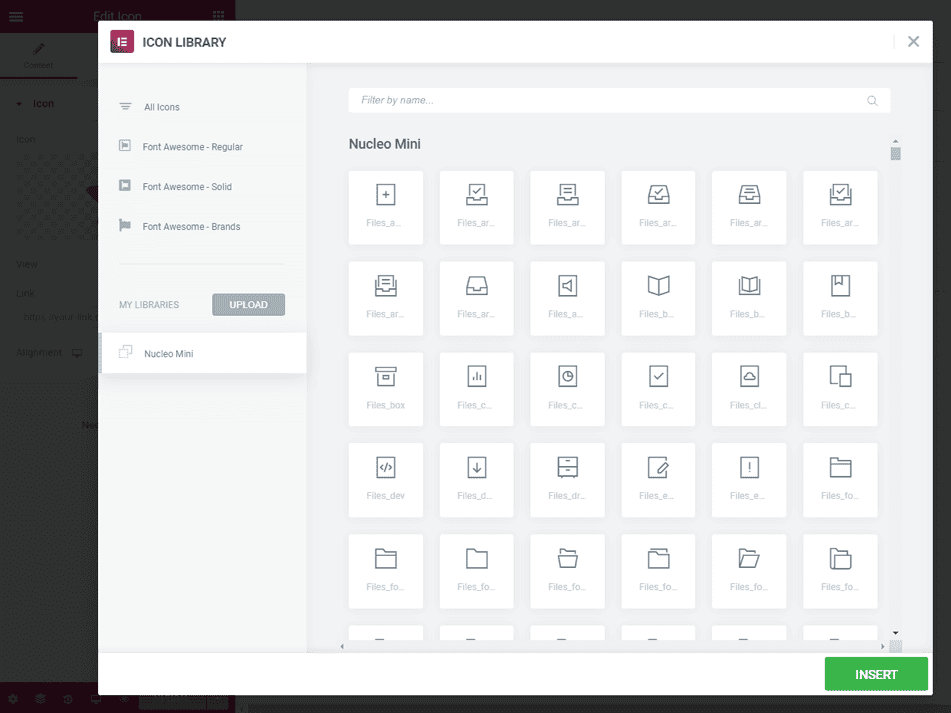
Here’s how you can check and resolve this:
- Visit the page where your icons should appear.
- Click the “Edit with Elementor” button to launch the Elementor editor.
- From there, open the media library. This will let you see if the icon you’re looking for is in the library.
- If the desired icon is missing, you should update your Kava Extra plugin to the latest version to resolve the issue.
Font Awesome Plugin Alternative
If the above solutions don’t restore your icons, you can try another method: installing the Font Awesome plugin directly.
- Within your WordPress admin panel, navigate to Plugins → Add New → Upload Plugin.
- Here, you’ll have an option to upload the Font Awesome Plugin that you’ve downloaded to your computer.
- Click on the “Install Now” button.
- Once installed, don’t forget to click the “Activate Plugin” button.
- The Font Awesome plugin should now be activated on your site, and your icons should be functional again.
Always back up your site before making any significant changes or updates. If anything unexpected happens, you’ll have a safety net to fall back on.
Conclusion: Fix Elementor Icons and Keep Them Working
Missing Elementor icons almost always stem from one of five causes: outdated plugin settings, stale CSS files, HTTPS conflicts, server restrictions, or missing library icons.
Work through the fixes in order, and you will resolve the issue in most cases without contacting support. If all else fails, installing the Font Awesome plugin directly provides a reliable fallback that works independently of Elementor’s built-in icon loading.
FAQs About Fixing Elementor Icons Not Showing
Why are Elementor icons not visible on my WordPress website?
Elementor icons may not appear due to caching issues, incorrect WordPress or site address, or plugin or addon compatibility issues. Sometimes the icon font family fails to load due to a wrong URL, blocked HTTPS resources, or outdated database files. If this happens for the first time, clear the cache and follow the above steps in this tutorial to restore icons and make them visible again.
How can I fix Elementor icons not showing after login?
After logging in to your WordPress dashboard, open Elementor settings and regenerate the CSS files. This action refreshes stored data and fixes many icon loading errors. You can also clear your site cache from your hosting panel or caching plugin. In many cases, these two ways resolve the issue quickly.
Can a caching issue cause Elementor icons to appear blank?
Yes. A caching issue often prevents new icon files from loading. When cached files remain outdated, icons may appear blank or missing. Clear your browser, plugin, and CDN caches. Once the old data refreshes, the icons should become visible again.
Do plugin or addon conflicts affect Elementor icons?
Yes. Some Elementor add-ons or third-party plugins can cause compatibility issues that prevent icons from loading. Disable plugins one by one from the menu to find the conflict. Once identified, update or replace the problematic plugin.
What should I check if the error still continues?
If the error persists after following the steps above, check the WordPress address and site address settings, confirm the correct HTTPS configuration, and review the database data.