
The WordPress block editor can look confusing when you first open it. The layout is different, everything works in blocks, and finding basic options may take longer than expected for beginners.
However, the block editor is included with all WordPress installations by default, making it a free tool for users.
So, once you know how blocks work, you can build pages faster, format content easily, and control your layouts better than you ever could in the classic editor.
The block editor is designed to be intuitive and flexible, allowing users to drag and drop blocks into place. With a little practice, you can build and customize pages in just a few minutes.
TL;DR
- The WordPress editor, also known as Gutenberg, replaced the classic editor in WordPress 5.0 and lets you build content using individual blocks.
- Every element on your page, including text, images, buttons, and layouts, sits in its own block with dedicated settings.
- You can customize colours, spacing, typography, and alignment directly from the block settings panel without any code.
- Block patterns give you ready-made layouts to start with, while reusable blocks let you save and reuse your own elements across your entire site.
What is the WordPress Block Editor?
The Block editor, also known as Gutenberg, is the default content editor in WordPress. It replaced the classic editor in WordPress 5.0 in December 2018.
Instead of one text area, you build content using individual blocks. Each paragraph, image, heading, button, and video gets its own block that you can move, format, and customize independently.
WordPress moved to a block-based system so you get more control over your page layouts without needing a separate page builder or custom code.
WordPress Block Editor vs Classic Editor
The classic editor gave you a basic text area with limited formatting options. Building anything beyond standard text and images meant installing extra plugins or having technical knowledge.
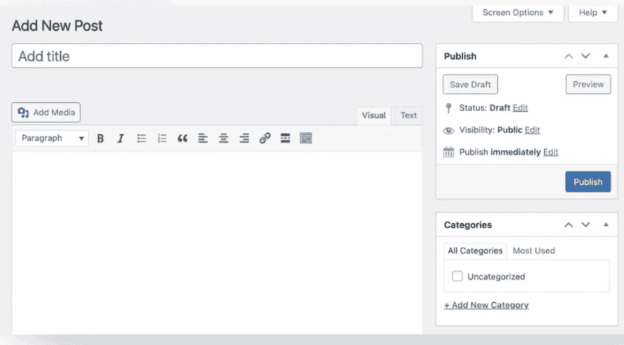
With the block editor, every element gets its own block with dedicated settings. You can move content around, create column layouts, add buttons, embed media, and adjust spacing without writing a single line of code.
WordPress no longer actively develops the classic editor. Switching to the block editor gives you access to everything WordPress currently offers, including full site editing, block patterns, and reusable blocks.
How to Navigate the Block Editor Interface?
When you first open the block editor, it can feel like a lot is happening on screen. However, there are three main areas you need to know. Once you understand each one, navigating the editor becomes much easier.

- Top Toolbar: The top toolbar is at the top of your screen. Use it to add blocks, undo mistakes, preview your content, and access your publish settings.
- Settings Panel: The settings panel is on the right side of your screen. It shows block settings when you click a block and switches to your post settings like categories, tags, and featured image when nothing is selected. You can access the block tab here to configure settings for the selected block.
- Block Inserter: The block inserter is the blue plus button in the top left corner. Click it to use the search bar to quickly find and insert blocks, browse by category, or find any reusable blocks you have saved.
You can also use the List View to manage and organize your layouts more effectively.
Types of Blocks Available
The block editor organizes everything into five categories. Each category groups blocks by what they do, making it easy to find exactly what you need when building your pages and posts.
The default blocks cover a wide range of content types, allowing users to create media-rich pages with images, videos, galleries, and more.
Here is what each one covers:
- Text Blocks: Paragraphs, headings, lists, quotes, code snippets, and tables. Everything you write on your page lives in this category.
- Media Blocks: Images, videos, audio files, image galleries, and downloadable files. You can use several blocks, including image galleries, to create visually engaging content and media rich pages.
- Design Blocks: Columns, buttons, groups, separators, and spacers. You can combine several blocks and other blocks to build complex layouts and control how content is presented.
- Widget Blocks: Search bars, archive lists, category lists, latest posts, and calendars. These are the functional elements that add more value to your pages.
- Embed Blocks: YouTube, Vimeo, Spotify, Twitter, and dozens of other platforms. The block editor lets users easily embed content from third-party sources, such as YouTube and Vimeo, directly into their pages without any code.
Common WordPress Blocks Beginners Use Most
When you are starting out, you do not need to learn every block at once. These are the blocks you will use on almost every page and post.
Paragraph and Heading Blocks
The paragraph block is the most basic block in the editor. Every time you start typing, you are using one. You can change the font size, text colour, and alignment directly from the block toolbar without touching any code.
Heading blocks work alongside paragraph blocks to give your content structure. You can choose from H1 through H6 depending on how you want to organize your page.
Using heading levels correctly also helps search engines understand your content, which matters for SEO.
Image and Media Blocks
The image block lets you upload images directly from your media library or from a URL. Once your image is in place, you can align it left, right, or centre, adjust the size, and add alt text for SEO and accessibility.
For multiple images, the gallery block displays them in a clean grid layout. You control the number of columns, image sizes, and whether captions appear below each image.
Button and Link Blocks
The button block lets you add a call to action anywhere on your page without any design skills. You can change the button text, link, background colour, border radius, and text colour all from the block settings panel.
For inline links, you simply highlight your text in a paragraph block and click the link icon in the toolbar. No code, no plugins, just a clean hyperlink added in seconds.
List and Quote Blocks
The list block creates bulleted or numbered lists with a single click. You can switch between list styles, indent items to create nested lists, and format text within each list item just like a paragraph block.
The quote block highlights important statements or citations in your content. It adds visual emphasis to a piece of text, making it stand out from the rest of your page.
Use it for testimonials, key points, or anything you want readers to notice.
How to Add, Move, and Delete Blocks?
Every action you take in the Gutenberg editor comes down to three things: adding blocks, moving them, and removing them. Here is how each one works.
Adding Blocks in the WordPress Editor
You can add a block to your page or post in three ways. You can add a new block by clicking the add new block button or by using the slash command (type / followed by the block name):
- Block Inserter: Click the blue plus button in the top left corner to open the block inserter. Here, you can search or browse for any block you need, and also explore the block pattern library for pre-designed block patterns and layouts that you can insert and customize.
- Inline Inserter: Hover between existing blocks on your page and click the small plus button that appears between them.
- Slash Command: Click any empty paragraph block, then type a forward slash (/) followed by the block name. This is a quick way to add a new block instantly.
Moving and Rearranging Blocks in Gutenberg
There are three ways to move a block to a new position on your page:
- Arrow Buttons: Every block has two arrow buttons on its toolbar. Use them to move the block up or down one position at a time.
- Drag Handle: Grab the six dot drag handle on the left side of the block and drag it anywhere on your page.
- Document Overview: Open the document overview panel from the top toolbar to see all your blocks listed in order and drag them into place from there.
Deleting and Removing Blocks in WordPress
Removing a block takes just a few seconds:
- Three Dot Menu: Select the block, click the three-dot menu on the block toolbar, and select Delete.
- Keyboard Shortcut: Select the block and press Backspace or Delete on your keyboard to remove it instantly.
- Undo a Mistake: Press Control Z on Windows or Command Z on Mac to recover a block you deleted by accident.
Customizing Blocks Without Coding
You do not need to know any code to customize how your blocks look. Every block in the WordPress editor comes with its own settings panel on the right side of your screen.
Select any block and the sidebar updates instantly to show you exactly what you can change for that block.
Here is what you can control directly from the block settings panel:
- Text Settings: Change font size, font weight, line height, and letter spacing to match your content style.
- Colour Options: Update the text colour and background colour of any block using the colour picker or by entering a hex code.
- Spacing Controls: Adjust padding and margin around your block to control how much space sits above, below, and around your content.
- Alignment Settings: Align your block to the left, centre, right, or set it to full width depending on your layout needs.
- Reusable Patterns: Save any block or group of blocks as a reusable pattern. Use it across multiple pages and posts without rebuilding it every time.
Using Block Patterns and Reusable Blocks
Block patterns and reusable blocks both save you time when building pages, but they work differently. Here is what each one does.
Block patterns are ready-made layouts that come built into the WordPress editor. You find them in the block inserter under the Patterns tab, and you can also access the official block pattern library for a wide selection of pre-designed layouts from WordPress.org.
Pick one you like, drop it onto your page, swap in your own content, and you are done. No building from scratch.
Reusable blocks are now called Synced Patterns. These let you create and save your own content, which you can reuse across all the blocks on your site.
Once saved, you can drop a Synced Pattern into any page or post, and if you edit it, the change applies everywhere it appears automatically.
Perfect for things like call to action sections, contact details, or disclaimers you use repeatedly.
Common Mistakes Beginners Make with the Block Editor
Most beginners run into the same issues when they first start using the block editor. Here is what to watch out for:
- Overusing Blocks: Not everything needs its own block. Adding too many separate blocks for small pieces of content makes your page harder to manage and slows down your editing workflow.
- Ignoring Heading Structure: Many beginners pick heading sizes based on how they look rather than what they mean. Heading levels tell search engines how your content is organized. Skipping from H2 to H4 or using H1 multiple times hurts your SEO.
- Not Using the Sidebar Settings: The block settings panel is where most of the customization happens. Skipping it means missing out on typography controls, colour options, and spacing settings that are already built in.
- Breaking Layouts Accidentally: Moving blocks with the drag handle is easy, but dropping a block in the wrong place can throw your layout off. Press Control Z on Windows or Command Z on Mac to undo and recover quickly.
Conclusion
The Gutenberg editor looks intimidating when you first open it. Every element is a block, the interface is new, and finding basic options takes a little getting used to.
Once you know how blocks work, building pages and writing content becomes faster and more flexible. You control your layouts, customize your content, and manage your entire site without touching a single line of code.
Start with the blocks you use most. Learn the settings panel. Save time with patterns and reusable blocks. The more you use the editor, the more natural it feels.
FAQs About WP Block Editor
What is the WordPress block editor?
Gutenberg is the default content editor in WordPress. It replaced the classic editor in WordPress 5.0 and lets you build pages and posts using individual content blocks instead of a single text area.
Is the Gutenberg editor good for beginners?
Yes. Once you understand how blocks work, it is straightforward to use. You can build pages, format content, and customize layouts without any coding knowledge or design experience.
Can I switch back to the classic editor in WordPress?
Yes. You can install the Classic Editor plugin from the WordPress plugin directory to restore the old editor. However, WordPress no longer actively develops the classic editor, so switching to blocks is recommended for long term use.
What is the difference between a block and a widget in WordPress?
A block is a content element you add inside the page or post editor. A widget is a content element you add to areas outside the main content like sidebars and footers. The block editor now supports both, with widget blocks available directly inside the editor.
How do I add custom blocks to the WordPress Editor?
You can add custom blocks by installing a WordPress plugin that includes them. Many page builder plugins and block libraries add new blocks directly to your block inserter. You can also find and install individual blocks from the block directory inside the editor.


