
When a shopper in Germany visits a US WooCommerce store and sees prices only in US dollars, they face two silent problems. First, they have to mentally convert the price to euros. Second, they wonder what their bank will charge for the conversion. Neither problem is insurmountable, but together they create enough friction that many international shoppers simply leave.
Research shows that 18% of online shoppers abandon their cart specifically because they cannot see prices in their local currency. Stores that display local currencies see conversion rate improvements of 12% to 20% in international markets compared to single-currency stores.
WooCommerce does not include multi-currency support natively, but three reliable methods exist for adding it. This guide covers all three, with full setup steps for each, a comparison of the best multi-currency plugins, and the common configuration mistakes that silently break international checkout.
WooCommerce multi-currency allows your online store to display prices and accept payments in multiple currencies, giving customers the option to shop and pay in their local currency.
A complete multi-currency setup includes automatic or manual exchange rates, location-based currency switching, payment gateway support, and accurate tax and shipping calculations for each currency.
Unlike display-only currency converters, a true multi-currency solution processes payments in the customer’s selected currency, creating a smoother checkout experience and improving international conversion rates.
Why Multi-Currency Matters for WooCommerce Stores?
International shoppers expect to see prices in their own currency before they trust a store enough to buy. These three reasons explain why that expectation directly affects your revenue.

Currency Uncertainty Drives Cart Abandonment
The Baymard Institute’s research identifies currency uncertainty as a direct cause of cart abandonment on international purchases. When a customer cannot determine their final cost in their own currency, they face a calculation they do not want to make. The cognitive load of mental currency conversion creates enough hesitation to abandon a purchase that would otherwise be completed.
This is not a marginal issue. Cross-border eCommerce is one of the fastest-growing segments of global retail. The international average order value is $147, approximately 17% higher than domestic eCommerce orders. Every abandoned cart due to currency friction represents a higher-than-average lost sale.
Multi-Currency Directly Increases Conversion Rates
Data from Statista confirms that stores that display local currency pricing see conversion rates from international visitors 12% to 20% higher than those that display only their base currency. The mechanism is straightforward: removing the need for currency calculation removes a decision-making barrier.
The effect is amplified by geolocation-based automatic switching. A German shopper who lands on your store and immediately sees prices in euros, without needing to manually switch a currency selector, experiences a local shopping environment. That immediate familiarity builds trust before a single product is evaluated.
SEO Benefits of Localized Pricing
Beyond conversion rates, WooCommerce multi-currency has an indirect SEO benefit. When combined with localized URLs through WPML or Polylang, currency localization signals to Google that your store serves specific markets. This can improve visibility in country-specific search results, particularly for branded queries in markets where you actively sell.
The SEO benefit requires more than currency switching. Localized URLs and hreflang tags are the primary signal. But currency localization, as part of a broader internationalization strategy, reinforces the signal that your store is genuinely set up for a specific market rather than simply accessible from it.
Need WooCommerce Multi-Currency Set Up on Your Store?
Seahawk configures WooCommerce multi-currency with the right plugin, exchange rates, tax rules, and gateway integration for your specific setup. No contracts. No retainers.
Best WooCommerce Multi-Currency Plugins Compared
| Plugin | Free Version | Geolocation | Auto Rates | Checkout Currency | Subscriptions | Best For |
| WooPayments (built-in) | Free (built-in) | Yes | Yes (Stripe) | Yes | Yes | Stores using WooPayments |
| CURCY (WOOCS) | Yes (limited) | Yes | Yes | Yes | Limited | Small to mid-size stores |
| YayCurrency | Yes (limited) | Yes | Yes | Yes | Yes | All store sizes |
| Aelia Currency Switcher | No ($89/year) | Yes | Yes | Yes | Yes | Complex stores, subscriptions |
| WPML + WCML | No ($99+/year) | Yes | Yes | Yes | No | Multilingual + multicurrency |
| FOX Currency Switcher | Yes (limited) | Yes | Yes | Yes | Limited | Budget-conscious stores |
WooPayments is the recommended starting point for any store already using WooPayments as its payment gateway. It adds multi-currency at no additional cost with native Stripe integration that handles exchange rate conversion, checkout processing, and order currency tracking without a third-party plugin.
YayCurrency is the strongest general-purpose option for stores using other gateways. It supports all major payment gateways, has a well-maintained free tier, and handles geolocation-based switching cleanly.
Aelia is the right choice for stores with WooCommerce Subscriptions, complex pricing rules, or currency-specific shipping requirements. It has the deepest WooCommerce integration of any third-party plugin and has been maintained since 2013.
WPML + WCML is the correct path when you are building a multilingual store and need currency switching tied directly to language switching.
Method 1: Enable Multi-Currency with WooPayments (Built-In, No Plugin Required)
WooPayments includes multi-currency as a native feature. If your store uses WooPayments as its payment gateway, this is the fastest and most reliable path to multi-currency support.
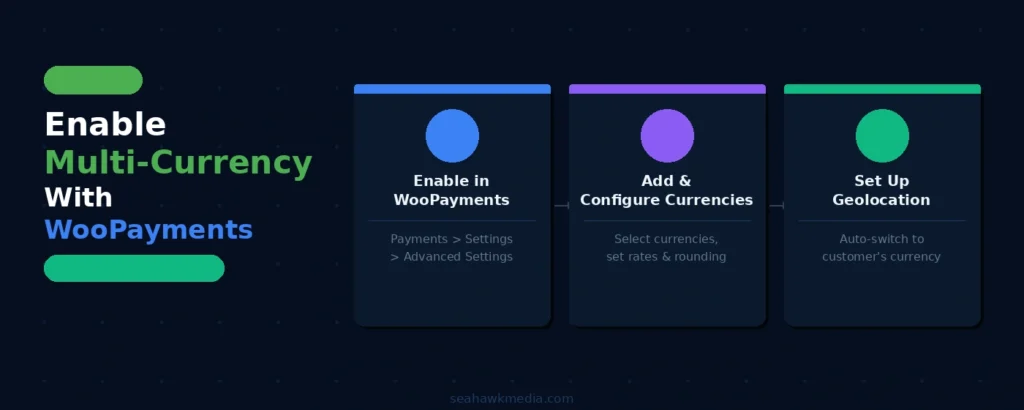
Step 1: Enable Multi-Currency in WooPayments
Go to Payments > Settings in your WordPress dashboard. Scroll to the bottom of the settings page and click Advanced settings. Check the box labeled Enable Multi-Currency. Click Save changes.
Once enabled, a Multi-Currency tab appears under WooCommerce > Settings. Navigate there for all further configuration.
Step 2: Add and Configure Your Currencies
Under WooCommerce > Settings > Multi-Currency, click Add/remove currencies. A list of all supported currencies appears. Select the currencies you want to enable for your store. After selecting, click Update selected to save.
Each added currency shows three configuration options:
Exchange rate: Set to Automatic to use Stripe’s live exchange rates, which update daily from the ECB (European Central Bank) and other sources. Set to Manual to define a fixed rate yourself. Automatic is appropriate for most stores. Manual rates work for stores that want to lock pricing at a specific rate for promotional or pricing strategy reasons.
Price rounding: Configure how converted prices are rounded. Options include rounding to the nearest whole number (€15 rather than €14.87), nearest 0.50, or no rounding. Rounding to a clean number significantly improves the aesthetic of displayed prices and is generally recommended.
Price charm: An optional setting that adjusts the final rounded price to end in .99 or .95 for markets where charm pricing is standard. Toggle this on for currencies where psychological pricing conventions are strong (USD, GBP, EUR).
Step 3: Set Up Geolocation-Based Switching
Under the Multi-Currency settings, check the “Automatically switch customers to their local currency” box. WooPayments uses geolocation to detect the customer’s country when they visit your store and automatically displays the appropriate currency.
Customers can still manually switch currencies using a currency switcher widget. Go to Appearance > Widgets and add the WooPayments Currency Switcher widget to your header, sidebar, or footer. This gives customers manual control if the automatic detection assigns the wrong currency.
Important note: WooPayments multi-currency displays prices in the local currency and charges customers in that currency. The payout you receive as a merchant is in your account’s payout currency, not necessarily the transaction currency. Review your WooPayments payout currency settings separately.
Method 2: Set Up Multi-Currency with YayCurrency
For stores using Stripe directly, PayPal, Square, or other gateways without WooPayments, YayCurrency is the most versatile and well-supported third-party option.
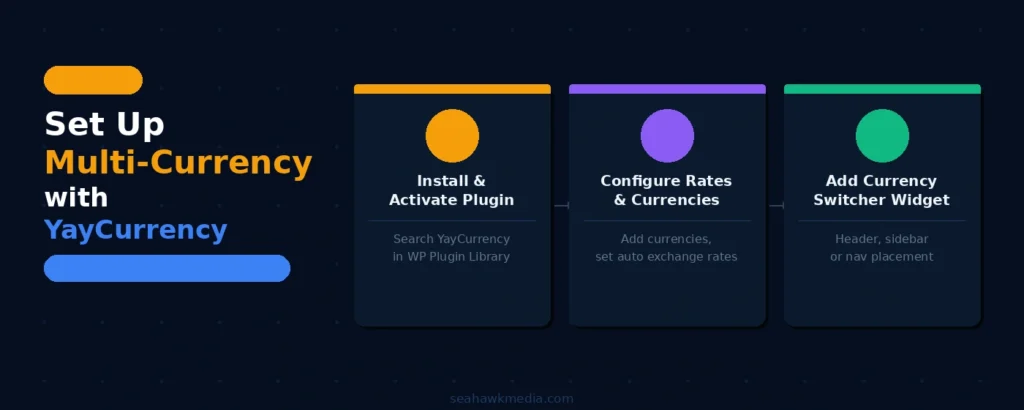
Step 1: Install and Activate YayCurrency
Go to Plugins > Add New in your WordPress dashboard. Search for YayCurrency. Install and activate the plugin. The free version supports unlimited currencies with geolocation detection, automatic exchange rates, and a currency switcher widget.
For fixed prices per currency per product and advanced rounding rules, the YayCurrency Pro version ($59/year) is required.
Step 2: Configure Exchange Rates and Add Currencies
Navigate to YayCurrency in your WordPress admin menu. Click Add Currencies. A currency library loads, showing all available currencies. Select the currencies you want to add. For each currency, configure:
Exchange rate source: Choose from Open Exchange Rates, ECB (European Central Bank), or a manual rate. Open Exchange Rates and the ECB both update automatically. Manual rates require you to update them whenever exchange rates change significantly.
Exchange rate update frequency: Set automatic updates to daily or hourly, depending on your pricing sensitivity. For most product categories, daily updates are sufficient. For high-ticket or commodity products where exchange rate fluctuations materially impact price competitiveness, hourly updates are more appropriate.
Rounding and charm pricing: Apply the same rounding and charm pricing logic as described in the WooPayments section above.
Step 3: Add the Currency Switcher to Your Store
YayCurrency provides two methods for adding a currency switcher:
Shortcode: Use [yaycurrency_switcher] in any page, post, or widget. This places a dropdown currency selector wherever the shortcode appears.
Widget: Go to Appearance > Widgets and add the YayCurrency Switcher widget to your preferred location. The header or navigation area is the most visible placement and the highest-converting position for currency switchers.
Menu integration: YayCurrency also supports adding the currency switcher directly to your WordPress navigation menu, keeping it visible on every page without requiring widget-area configuration.
Method 3: Set Up Multi-Currency with WPML and WooCommerce Multilingual
If your store serves customers in multiple languages and currencies, WPML (WordPress Multilingual Plugin), combined with the WooCommerce Multilingual and Multicurrency (WCML) add-on, is the right path. This method ties currency switching directly to language switching.
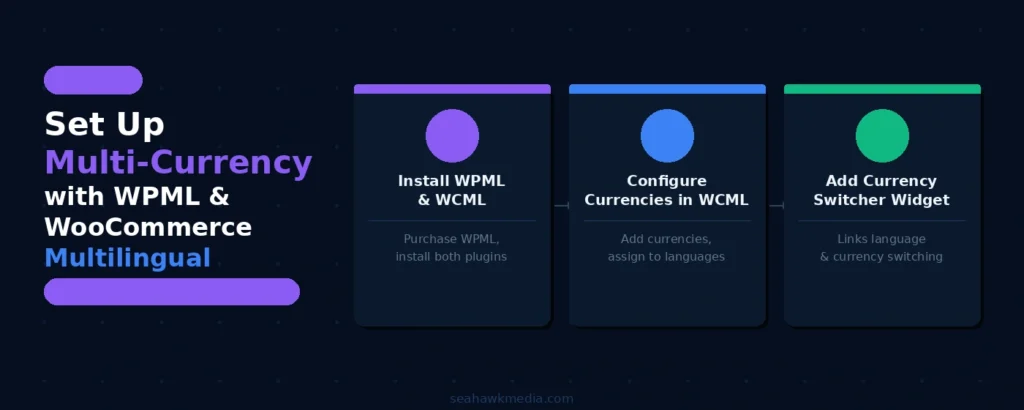
Step 1: Install WPML and WCML
Purchase WPML from wpml.org (starts at $99/year). Install and activate WPML in your WordPress dashboard. Navigate to Plugins > Add New and install WooCommerce Multilingual and Multicurrency (available free from WordPress.org or via WPML’s account).
Step 2: Configure Currencies in WCML
Go to WooCommerce > WooCommerce Multilingual and Multicurrency. Click the Multicurrency tab. Click Add Currency and select the currencies to enable.
For each currency, WCML allows you to:
- Set automatic exchange rates or manual rates
- Configure the update frequency
- Assign a currency to a specific language (so French visitors automatically see EUR and the French language together)
Step 3: Add the Currency Switcher Widget
Go to WooCommerce > WooCommerce Multilingual and Multicurrency. Under the Multicurrency tab, find Widget Currency Switcher. Add the WCML currency switcher widget to your header or sidebar via Appearance > Widgets.
WCML’s currency switching is particularly clean when tied to language switching because the language switcher (flags or language names in the navigation) automatically triggers the corresponding currency change without requiring a separate currency selector interaction.
How to Handle Taxes and Shipping for Multiple Currencies?
Displaying prices in local currency is only half the job. Taxes and shipping must also be calculated correctly for each customer’s location before your store is genuinely ready for global selling.
Configuring Tax Rates by Country
WooCommerce calculates taxes based on the customer’s shipping address. For multi-currency stores serving international customers, this means tax rates must be configured for each country you sell to.
Go to WooCommerce > Settings > Taxes > Tax Options. Set the “Calculate Tax Based On” option to the customer’s shipping address. This ensures customers are taxed at the rate applicable to their location, not at your store’s rate.
Go to WooCommerce > Settings > Taxes > Standard Rates. Add the tax rates for each country you serve. For EU VAT compliance, each EU member state requires its own VAT rate entry. For US sales, add state-level sales tax rates where applicable.
Tax amounts are displayed in the customer’s currency. This is handled automatically by all the multi-currency methods above.
Setting Currency-Specific Shipping Rules
Standard WooCommerce shipping zones calculate rates in your store’s base currency. If a customer is viewing prices in euros, WooCommerce converts the shipping cost to euros at the current exchange rate.
For stores where you want to set specific shipping prices per currency (for example, a flat shipping rate of $5 USD and €4.50 EUR rather than a converted rate), Aelia Currency Switcher handles this with its currency-specific shipping rate configuration. YayCurrency Pro also supports fixed shipping rates per currency.
For most stores, automatic conversion of shipping rates is sufficient. If your shipping rates are set to round to the nearest whole number in your base currency, apply price rounding to all currencies so shipping costs also display as clean, rounded numbers in converted currencies.
Payment Gateway Compatibility
Multi-currency checkout requires payment gateway support for the currencies you enable. Not all gateways process every currency.
| Gateway | Multi-Currency Support | Notes |
| Stripe (via WooPayments) | 135+ currencies | Native, no plugin needed |
| PayPal Payments | 25 currencies | Requires PayPal Commerce Platform |
| Square | Limited | Primarily US, CA, UK, AU, JP |
| Authorize.Net | USD, CAD, GBP, EUR, AUD + more | Configure via the gateway dashboard |
| Klarna | Available in select markets | Market-specific currencies only |
Before enabling a currency, verify your payment gateway supports it. If a customer selects a currency your gateway does not support, the checkout will fail. Most multi-currency plugins display only the currencies your gateway can process, but verify this in your gateway’s dashboard independently.
Common WooCommerce Multi-Currency Mistakes to Avoid
Most multi-currency setups that fail to improve international conversions have one of these three problems. Check your current configuration against each one before going live.
Using Display-Only Currency Conversion
The most common multi-currency mistake is implementing a plugin that converts prices for display but charges customers in the store’s base currency at the bank’s exchange rate. Customers who complete checkout expecting to pay €45 and then see a USD charge on their statement feel misled, even if the amounts are equivalent.
Always verify that your checkout processes the payment in the customer’s selected currency, not just displays it. Test this with a live transaction or sandbox mode in your payment gateway dashboard.
Not Updating Exchange Rates Automatically
Exchange rates fluctuate daily. A store using manual exchange rates that are not regularly updated will either undercharge international customers (lowering revenue per sale) or overcharge them (leading customers to find better prices elsewhere). Set exchange rate updates to automatic and choose a reliable source (Stripe, Open Exchange Rates, or ECB).
Not Testing Checkout in Every Currency
The configuration that looks correct in your WooCommerce settings may not process correctly at checkout. Before enabling any currency for live transactions, complete a test purchase end-to-end in sandbox mode:
- Product displays the correct price in the selected currency
- Shipping cost displays correctly in the currency
- Tax is calculated correctly for the customer’s location
- Checkout processes the payment in the selected currency (not the base currency)
- The order confirmation email shows the correct currency and amount
- The order in the WooCommerce admin shows the correct currency
- Run this test for every currency you enable, not just your primary international currency.
Final Thoughts on WooCommerce Multi-Currency
Multi-currency is one of the highest-ROI configuration changes available to any WooCommerce store with international traffic. The 12% to 20% conversion rate improvement in international markets, combined with the 18% reduction in cart abandonment from currency uncertainty, makes the implementation time a sound investment.
Start with WooPayments if you use it as your gateway. Its native multi-currency feature requires no additional plugin, handles exchange rates automatically via Stripe, and processes payments in the customer’s local currency. If you use a different gateway, YayCurrency or Aelia handles the same functionality with reliable gateway integration.
Configure geolocation to switch currencies automatically. Add a visible currency switcher for customers who want manual control. Set exchange rates to update automatically. Test every currency end-to-end before going live.
If you need help configuring WooCommerce multi-currency on your store, Seahawk’s WooCommerce development team handles the full setup, including gateway compatibility, geolocation, tax configuration, and end-to-end testing.
Frequently Asked Questions About WooCommerce Multi-Currency
Does WooCommerce support multiple currencies natively?
No. WooCommerce supports only a single base currency natively. To accept or display prices in multiple currencies, you need either WooPayments (which includes multi-currency as a built-in feature at no extra cost) or a third-party multi-currency plugin such as CURCY, YayCurrency, Aelia, or WPML with WooCommerce Multilingual and Multicurrency.
What is the best WooCommerce multi-currency plugin?
WooPayments is the best option for stores already using it as their payment gateway, because multi-currency is built in with no additional plugin or cost. For stores using other gateways, YayCurrency is the most versatile free option, with a reliable free tier covering geolocation, automatic exchange rates, and full checkout currency processing. Aelia is the best premium option for complex stores with subscription products, variable pricing per currency, or advanced shipping rules.
Will WooCommerce multi-currency affect my conversion rates?
Yes, positively. Research shows that WooCommerce stores that display local currency pricing see conversion rates 12% to 20% higher for international visitors. Approximately 18% of online shoppers abandon carts specifically because they cannot see prices in their local currency. Implementing full multi-currency checkout eliminates this friction for every international visitor.
Does WooCommerce multi-currency work with subscriptions?
It depends on the plugin. WooPayments handles subscriptions in multiple currencies natively. Aelia Currency Switcher is the most reliable third-party option for subscription stores. CURCY and WOOCS have limited subscription support. YayCurrency Pro supports subscriptions with WooCommerce Subscriptions. Always verify subscription compatibility, specifically before implementing multi-currency on a subscription store.
What is the difference between a currency converter and a multi-currency checkout?
A currency converter displays prices in the customer’s local currency as an approximation but charges the customer in the store’s base currency. The customer sees one amount and is charged another (at whatever exchange rate their bank applies). Multi-currency checkout displays prices in local currency and charges the customer in that currency. Multi-currency checkout is significantly preferred by international customers and produces higher conversion rates. Always verify that your implementation processes the payment in the selected currency, not just displays it.
How do I handle taxes for multiple currencies in WooCommerce?
Go to WooCommerce > Settings > Taxes > Tax Options and set Calculate Tax Based On to Customer shipping address. This applies the customer’s location tax rate rather than your store’s. Add individual country tax rates under WooCommerce > Settings > Taxes > Standard Rates. Tax amounts are automatically converted to the customer’s selected currency by the multi-currency plugin.
How many currencies can WooCommerce handle?
WooPayments supports over 135 currencies. YayCurrency and Aelia support all ISO-standard currencies (180+). CURCY supports unlimited currencies on the premium version. In practice, enable only the currencies for the specific markets you actively target. Each additional currency requires payment gateway support, tax rate configuration, and end-to-end checkout testing.