If your WooCommerce store accepts payments from customers in the European Economic Area or the United Kingdom, Strong Customer Authentication is not optional. It is a legal requirement under the EU’s Payment Services Directive 2 (PSD2) and the UK’s Financial Conduct Authority (FCA) regulations.
Without it, your payment gateway may decline transactions, your customers may abandon checkout, and your store may fall out of compliance.
The good news is that enabling SCA on WooCommerce is straightforward with the right payment gateway and configuration. This guide covers exactly what SCA is, which WooCommerce payment gateways support it, how to enable it for each major gateway, and how to handle edge cases, including exemptions and subscription payments.
Strong Customer Authentication (SCA) is a payment security requirement under EU PSD2 and UK FCA regulations that requires customers to verify their identity using at least two authentication factors when completing an online payment.
Authentication factors include something the customer knows (password or PIN), something they have (mobile device or authentication app), and something they are (fingerprint or Face ID).
Most WooCommerce stores meet SCA requirements through 3D Secure 2 (3DS2), which adds an extra verification step during checkout for eligible transactions.
Why SCA Matters for Your WooCommerce Store?
The UK Cards Association estimates that online card fraud accounts for billions in annual losses globally. SCA was introduced specifically to reduce fraud on digital transactions by requiring customers to prove their identity at the point of payment.
For WooCommerce store owners, the practical implications are direct:
Without SCA-compliant gateways, transactions from EEA and UK customers may be declined by their issuing banks, even if the card details are valid. This results in lost sales that appear as payment failures with no obvious cause.
With SCA-compliant gateways: The checkout flow includes a brief authentication step (typically a push notification from the customer’s banking app or an SMS code) that confirms the payment. Conversion rates on this step are high when the UX is smooth, and the authentication method is familiar to the customer.
Need Your WooCommerce Payment Setup Done Right?
Seahawk configures SCA-compliant payment gateways, subscription billing, and checkout optimization for WooCommerce stores. No contracts. No retainers.
Which WooCommerce Payment Gateways Support SCA?
Before configuring your store, verify that your payment gateway supports 3DS2 and SCA. Here is the status of the most widely used WooCommerce gateways.
| Gateway | SCA Support | Method | Notes |
| WooPayments (formerly WooCommerce Payments) | Yes | 3DS2 | Built-in, enabled by default |
| Stripe for WooCommerce | Yes | 3DS2 | Enabled automatically |
| PayPal Payments | Yes | 3DS2 | Requires PayPal Commerce Platform |
| Klarna Payments | Yes | Native SCA | Built into Klarna’s checkout |
| Mollie Payments | Yes | 3DS2 | Enabled by default |
| Square for WooCommerce | Yes | 3DS2 | Supported via Square’s API |
| Braintree for WooCommerce | Yes | 3DS2 | Requires 3DS configuration in the Braintree dashboard |
| PayFast | Regional | Limited | Primarily South Africa, check the current SCA status |
| Authorize.Net | Partial | 3DS optional | Must enable 3DS in Authorize.Net dashboard |
If you are using a payment gateway not listed here, check the gateway’s documentation for its SCA and 3DS2 status before accepting payments from EEA or UK customers.
How to Enable SCA on WooCommerce: Step-by-Step
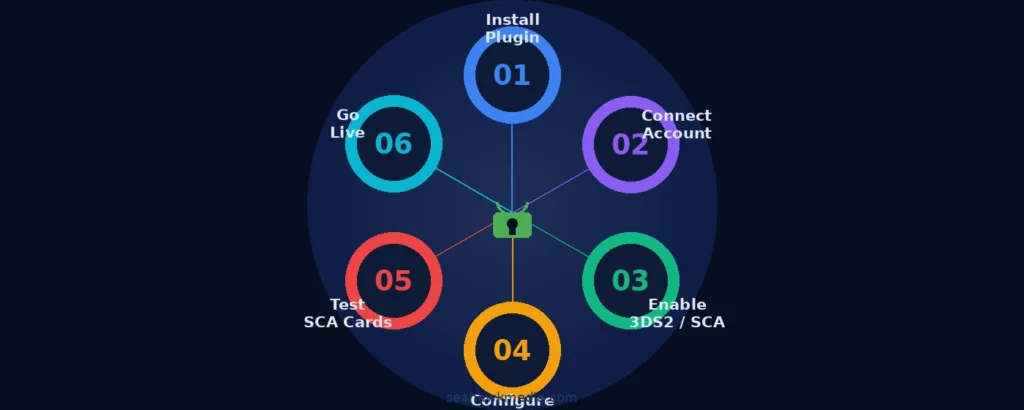
Each major gateway handles SCA differently. Find your gateway below, follow the steps in order, and use the test cards in the testing section to verify everything is working before switching to live mode.
Setting Up SCA With Stripe for WooCommerce
Stripe is the most widely used SCA-compliant payment gateway for WooCommerce. The Stripe for WooCommerce plugin handles 3DS2 authentication automatically, with no additional configuration required for most stores.
Step 1: Install the Stripe for WooCommerce plugin
Go to Plugins > Add New in your WordPress dashboard. Search for “Stripe for WooCommerce” by WooCommerce. Install and activate the official plugin. Avoid unofficial Stripe plugins that may not be fully PSD2-compliant.
Step 2: Connect your Stripe account
Navigate to WooCommerce > Settings > Payments > Stripe. Click the Connect to Stripe button. Sign in to your Stripe account and authorize the connection. Your publishable and secret API keys will be populated automatically.
Step 3: Enable test mode and verify 3DS2 is active
Before going live, switch to test mode in the Stripe plugin settings. In your Stripe Dashboard, go to Developers > Radar > Rules and confirm that 3D Secure is enabled. Stripe enables 3DS2 by default for all cards that require it.
Step 4: Configure payment methods
Under the Stripe plugin settings in WooCommerce, enable the payment methods you want to offer. Card payments, Apple Pay, and Google Pay are all SCA-compliant out of the box through Stripe. Apple Pay and Google Pay use biometric authentication natively, which satisfies SCA without a separate 3DS2 step.
Step 5: Test with Stripe’s 3DS2 test cards
Use the following test card numbers to verify SCA is working correctly:
- Requires 3DS2 authentication: 4000 0025 0000 3155
- Authentication fails: 4000 0084 0000 1629
- Does not require 3DS2: 4242 4242 4242 4242
For each test, proceed through checkout, observe whether the 3DS2 authentication prompt appears, complete the authentication, and verify the order appears in WooCommerce with the correct status.
Setting Up SCA With WooPayments (WooCommerce Payments)
WooPayments is WooCommerce’s native payment gateway, powered by Stripe’s infrastructure. SCA compliance is built in and enabled by default.
Step 1: Install WooPayments
Go to Plugins > Add New and search for WooPayments. Install and activate. WooPayments is only available in supported countries. Check WooCommerce’s current list of supported countries before installing.
Step 2: Complete the onboarding process
Click the Set up WooPayments button in your WooCommerce dashboard. Complete the onboarding flow, including connecting your business details and bank account. WooPayments uses Stripe under the hood, so SCA is handled automatically once onboarding is complete.
Step 3: Enable test mode
Toggle test mode on in WooPayments > Settings. Use the same Stripe test card numbers listed in the Stripe section above to verify authentication is working before accepting live payments.
Step 4: Review fraud protection settings
WooPayments includes a fraud protection section under WooPayments > Settings > Advanced. Review these settings to ensure your protection rules are not inadvertently flagging legitimate SCA-authenticated transactions.
Setting Up SCA With PayPal Payments
PayPal’s SCA compliance requires using the PayPal Commerce Platform integration rather than PayPal Standard. PayPal Standard does not support 3DS2 and is not SCA-compliant.
Step 1: Install the PayPal Payments plugin
Go to Plugins > Add New and search for “PayPal Payments” by WooCommerce. Install and activate. Do not use older versions of the PayPal Standard or PayPal Express Checkout plugins for EU and UK transactions.
Step 2: Connect to PayPal Commerce Platform
In WooCommerce > Settings > Payments > PayPal, click Connect to PayPal. Complete PayPal’s account verification process. This links WooPayments to your PayPal Business account using the modern Commerce Platform API.
Step 3: Enable 3DS2 in PayPal settings
In your PayPal Business account settings, navigate to Security > 3D Secure. Ensure 3D Secure is enabled for all card transactions. PayPal handles the authentication step natively through its checkout interface.
Step 4: Test in the PayPal sandbox
Switch to sandbox mode in the PayPal Payments plugin settings. Create a PayPal sandbox account at developer.paypal.com and run test transactions to verify the SCA authentication step is functioning correctly.
SCA Exemptions: When Authentication is Not Required
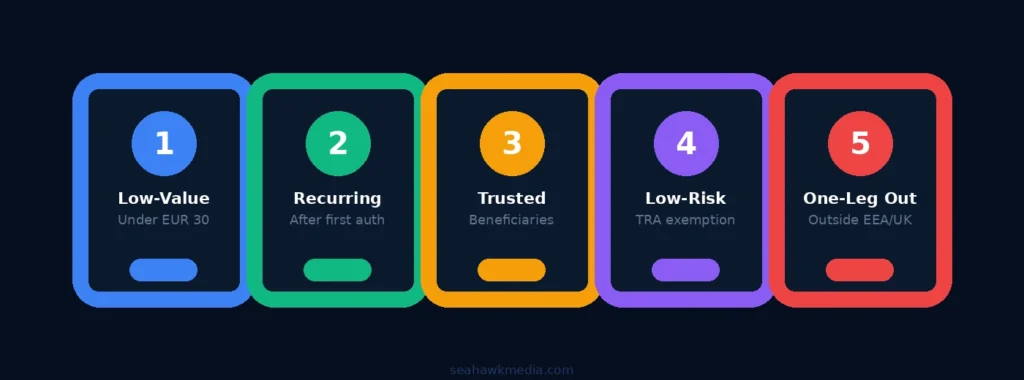
SCA is not required for every transaction. Understanding exemptions helps you maintain a smooth checkout experience for customers whose transactions qualify.
Low-Value Transactions
Transactions under €30 (or £25 in the UK) are exempt from SCA. However, if a customer makes multiple small purchases that cumulatively exceed €100, or makes more than five consecutive exempt transactions, SCA will be triggered on the next transaction regardless of the individual amount.
Recurring Subscription Payments
For WooCommerce subscription products, SCA is required only for the first payment. Subsequent renewal charges for merchant-initiated transactions are exempt from SCA because the initial transaction already established the authenticated mandate.
This is important for stores using WooCommerce Subscriptions. The plugin handles this automatically when used with a 3DS2-compliant gateway like Stripe or WooPayments.
Trusted Beneficiaries
Customers can designate a merchant as a trusted beneficiary through their banking app. Once trusted, future transactions with that merchant are exempt from additional authentication steps. This is handled at the bank level and requires no configuration on your WooCommerce store.
Low-Risk Transactions
Payment Service Providers can apply for a Transaction Risk Analysis (TRA) exemption for transactions that their fraud monitoring systems classify as low risk. Stripe automatically applies this exemption to eligible transactions using Stripe Radar. You do not need to configure this manually.
One-Leg Transactions
SCA only applies when both the acquirer (your payment processor) and the issuer (the customer’s bank) are in the EEA or the UK. If either party is outside the EEA or the UK, the transaction is a “one-leg out” transaction and SCA is not required. Stripe and WooPayments identify these automatically.
WooCommerce Subscriptions and SCA
Subscription products require special attention because their payment patterns differ from those of one-time purchases.
Initial subscription payment: SCA is required. The customer must authenticate on their first payment to establish an authenticated mandate for future charges.
Subsequent renewal charges: These are merchant-initiated transactions. The SCA exemption for merchant-initiated transactions applies, meaning the customer does not need to authenticate again on each renewal.
Subscription plan changes: If the customer upgrades or changes their subscription in a way that significantly alters the payment amount or schedule, a new authentication may be required.
Handling SCA failures on renewals: If a renewal charge fails, WooCommerce Subscriptions (when configured with Stripe or WooPayments) attempts a retry and may trigger a new SCA challenge if the issuing bank requires it. Ensure your dunning email sequence includes a link for customers to update their payment method and re-authenticate if needed.
Testing SCA on Your WooCommerce Store
Test every SCA scenario before accepting live payments from EEA or UK customers.
Stripe Test Cards for SCA
| Card Number | Behavior |
| 4000 0025 0000 3155 | Requires 3DS2 authentication |
| 4000 0000 0000 3220 | 3DS2 frictionless (no prompt) |
| 4000 0084 0000 1629 | 3DS2 authentication fails |
| 4000 0000 0000 9235 | 3DS2 required, then authentication fails |
| 4242 4242 4242 4242 | Standard card, no SCA required |
Use these cards with any future expiry date, any three-digit CVV, and any billing postcode.
What to Verify in Testing
- The 3DS2 authentication prompt appears for cards that require it
- Authentication completes successfully, and the order is placed
- Declined authentication shows a clear error message at checkout
- Apple Pay and Google Pay are complete without a separate 3DS2 prompt
- Subscription initial payment triggers SCA
- Simulated renewal charge processes without SCA prompt
- Failed payment triggers the correct dunning email sequence
Common SCA Issues and How to Fix Them
Transactions declined without an error message. Check whether your payment gateway plugin is up to date. Outdated Stripe or PayPal plugins may not handle 3DS2 authentication correctly, leading to silent declines. Update to the latest plugin version and retest.
3DS2 prompt not appearing. Confirm that test mode is enabled and you are using the correct Stripe test card (4000 0025 0000 3155). If using a live environment, 3DS2 is triggered at the bank’s discretion. Not every transaction requires it, even in the EEA.
Check out breaking after 3DS2 authentication. This is often caused by a plugin conflict with your checkout or payment plugin. Deactivate all non-essential plugins and test the checkout flow. Reactivate plugins one by one to identify the conflict.
Subscription renewals are failing for EEA customers. Verify that WooCommerce Subscriptions is using a gateway that supports merchant-initiated transactions. Only Stripe for WooCommerce and WooPayments handle subscription exemptions correctly by default. PayPal requires additional configuration for subscription renewals.
SCA authentication completed, but the order shows as pending. This is a webhook delivery issue. Check your Stripe or PayPal webhook settings and verify that the payment confirmation webhook is being received by your site. Install WP Mail SMTP to ensure webhook-triggered emails are sending correctly.
Final Thoughts on Strong Customer Authentication for WooCommerce
SCA compliance is non-negotiable for WooCommerce stores serving EEA and UK customers. The setup is not complicated, but it does require using a 3DS2-compliant payment gateway and testing thoroughly before going live.
Stripe for WooCommerce and WooPayments are the most straightforward options because they handle SCA automatically once connected. PayPal requires the Commerce Platform integration rather than the legacy Standard setup. For subscription products, verify that renewal charges are processing under the merchant-initiated transaction exemption so customers are not repeatedly prompted to authenticate.
Test every scenario in the table above before removing test mode. A 3DS2 failure at checkout on a live store costs you a sale and potentially a customer.
If you need help configuring SCA-compliant payment gateways on your WooCommerce store or troubleshooting failed transactions, Seahawk’s WooCommerce development team handles the full setup.
Frequently Asked Questions About Strong Customer Authentication on WooCommerce
What is Strong Customer Authentication (SCA) in WooCommerce?
Strong Customer Authentication is a security regulation under PSD2 and UK FCA rules that requires two-factor verification for online card payments from EEA and UK customers. In WooCommerce, it is typically implemented through 3D Secure 2 (3DS2), which prompts the customer to authenticate via their banking app, an SMS code, or biometric verification before the payment is completed.
Does my WooCommerce store need SCA if I am not based in Europe?
Yes, if you accept payments from customers whose cards are issued in the EEA or UK. SCA applies based on where the customer’s card is issued and where your payment processor is based, not where your business is physically located. If either the acquiring bank or the issuing bank is in the EEA or the UK, SCA may be required.
Which WooCommerce payment gateways support SCA?
The main SCA-compliant gateways for WooCommerce are Stripe for WooCommerce, WooPayments, PayPal Payments (Commerce Platform), Klarna Payments, Mollie, and Square. Legacy integrations such as PayPal Standard do not support 3DS2 and are not SCA-compliant. Always verify your gateway’s current SCA status in its documentation.
Do subscription payments in WooCommerce require SCA on every renewal?
No. SCA is required only on the first payment of a subscription. Subsequent renewal charges are merchant-initiated transactions and are exempt from SCA under PSD2 and UK FCA rules. WooCommerce Subscriptions handles this automatically when used with Stripe for WooCommerce or WooPayments.
What happens if a customer fails the SCA authentication step?
If a customer fails or cancels the SCA authentication, the transaction is declined by the issuing bank. The customer sees a payment error at checkout. They can attempt the payment again. If failures persist, the customer may need to contact their bank to resolve an issue with their 3DS2 setup or authentication app.
Are any transactions exempt from SCA in WooCommerce?
Yes. SCA exemptions include transactions under €30 (subject to cumulative limits), merchant-initiated subscription renewals after the initial authenticated payment, low-risk transactions as determined by the payment processor’s fraud monitoring, and transactions where either the acquiring bank or issuing bank is outside the EEA and UK. These exemptions are typically applied automatically by compliant gateways.
How do I test SCA on my WooCommerce store?
Enable test mode in your payment gateway settings. For Stripe, use the test card 4000 0025 0000 3155 to simulate a transaction that requires 3DS2 authentication. Complete the authentication prompt and verify that the order is placed successfully. Test the failure scenario with card 4000 0084 0000 1629 and verify your store handles the declined transaction gracefully.