
Quick answer: To italicize text in CSS, use the font-style: italic; property on any selector. For semantic emphasis, use the <em> HTML tag. For purely visual styling, use the <i> tag or apply the CSS property directly.
Italics are one of those small design decisions that quietly do a lot of heavy lifting. They guide your reader’s attention, add rhythm to your text, and create visual hierarchy without needing an extra line of code.
If you are building a website and want to know how to italicize text in CSS properly, including when to use which method and why it matters for both design and accessibility, you are in the right place.
In this guide, we will walk you through everything from the basics of the font-style property to advanced techniques like responsive italics, font family considerations, and common developer mistakes to avoid.
TL;DR: Everything You Need to Know About Italicizing Text in CSS
- Use font-style: italic; for all CSS-based italics. It is the standard property and works across every modern browser without any workarounds.
- External stylesheets are always the best approach. Write your italic styles in a separate .css file rather than inline or in the HTML head. It keeps your code clean and maintainable as your site grows.
- The em tag and the i tag are not the same. The <em> tag carries semantic emphasis and affects how screen readers interpret your content. The <i> tag is purely visual, with no meaning attached.
- Not all fonts include a true italic version. If your chosen font does not have an italic variant, the browser will synthesize one by mechanically slanting the text, and the result usually looks rough. Always load the italic weight from your font provider.
- Oblique and italic are different values. Italic uses the font’s designed slanted letterforms. Oblique artificially tilts the normal font. When you have a choice, italic is the cleaner option.
- Overusing italics kills their impact. Reserve them for short phrases, captions, titles, and key terms. Large blocks of italic body text strain the eyes and lose their power to emphasize anything at all.
- Accessibility cannot be an afterthought. Never use italics as the only signal for important information. Pair them with bold text, labels, or surrounding context so that all users, including those using screen readers, can understand your content fully.
What Does Italicizing Text Actually Do in CSS?
When you italicize text in CSS, you are telling the browser to render a word, phrase, or block of text in a slanted style. But there is more going on than just a visual tilt.
Browsers distinguish between two things when they encounter italic text:
- Visual rendering: The text appears slanted on the page.
- Semantic meaning: Depending on the HTML tag you use, the browser and screen readers may treat that text as emphasized content, which affects how it is read aloud and how search engines interpret its importance.
This distinction is exactly why understanding the CSS font-style property alongside the right HTML tags matters so much. Let’s break it down properly.
Make Your Website Look as Good as It Performs.
From typography to performance, every detail matters. We design WordPress websites that are clean, fast, and built to convert.
The CSS font-style Property Explained
The font-style property is the core CSS tool for controlling the slant of your text. It is clean, simple, and widely supported across all modern browsers.
What is the font-style Property?
The CSS font-style property, part of the font shorthand, controls whether text appears upright, italic, or oblique. You apply it to any CSS selector, and it cascades down to child elements unless overridden.
Basic syntax looks like this:
selector {
  font-style: italic;
}
The Three Values of font-style
The font-style property accepts the following values:
| Value | What It Does | Example |
|---|---|---|
| normal | Default value. Displays text upright. | font-style: normal; |
| italic | Renders text in the font’s true italic version if available. | font-style: italic; |
| oblique | Artificially slants the text. Useful when a font has no true italic variant. | font-style: oblique; |
The difference between italic and oblique is subtle but worth knowing. Italic uses the font’s actual italic design, which is often a slightly different letterform. Oblique simply tilts the normal font mechanically. When in doubt, use italic.
Three Ways to Apply Italics to Your Web Page
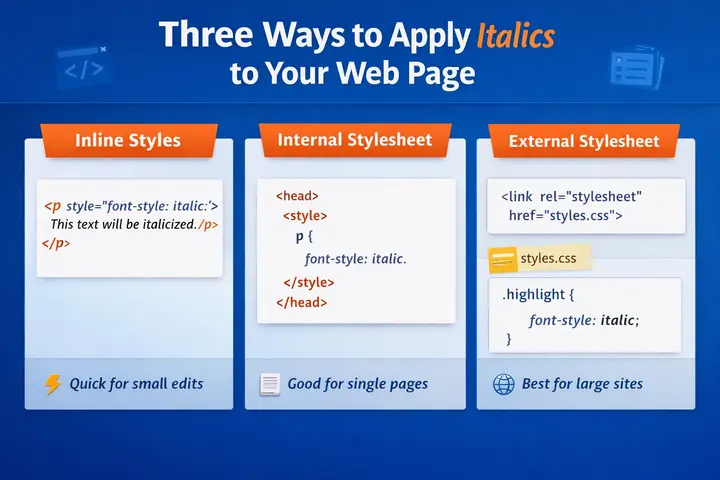
CSS gives you three methods for applying the font-style property, and each one has its place depending on your project size and structure.
Inline Styles
You write the style directly inside the HTML element using the style attribute.
<p style="font-style: italic;">This text will be italicized.</p>This is quick and useful for one-off overrides or rapid prototyping. However, it is not ideal for large projects because it combines your markup with your styling, making future updates harder to manage.
Internal Stylesheets
You place your CSS inside a <style> block in the <head> of your HTML document.
<head>
  <style>
    p {
      font-style: italic;
    }
  </style>
</head>
This approach works well for single-page projects or small sites where keeping everything in one file makes sense. It is cleaner than inline styles, but still ties your design to a specific HTML file.
External Stylesheets (Recommended)
You write your CSS in a separate .css file and link it to your HTML document. This is the approach we recommend for any real production website.
<!-- In your HTML head -->
<link rel="stylesheet" href="styles.css" />
/* In styles.css */
.highlight {
  font-style: italic;
}
External stylesheets keep your code organized, reusable, and easy to maintain across multiple pages. They also load more efficiently once cached by the browser, which supports your site’s performance.
Note: Inline styles have the highest specificity, followed by internal stylesheets, then external ones. But for long-term maintainability and ensuring consistency across your site, always default to external stylesheets.
How to Target Specific Elements for Italicization?
You rarely want to italicize every piece of text on a page. CSS selectors let you apply italics exactly where you want them.
Element Selectors
Target all instances of a specific HTML element.
p {
  font-style: italic;
}
This italicizes every paragraph on the page. Use this sparingly since applying it globally can hurt readability.
Class Selectors
This is the most flexible approach for applying italics to multiple specific elements.
.pullquote {
  font-style: italic;
  font-size: 1.1em;
}
<p class="pullquote">Design is not just what it looks like. It is how it works.</p>Class selectors are ideal for styling components like quotes, captions, disclaimers, or any repeating element that needs to stand out visually.
ID Selectors
Target a single unique element on the page.
#book-title {
  font-style: italic;
}
Use ID selectors sparingly. They carry very high specificity, which can make your CSS harder to override later if your design evolves.
A Quick Note on CSS Specificity
In order from highest to lowest: ID selectors beat class selectors, and class selectors beat element selectors. If your italic style is not applying, a more specific rule somewhere else in your CSS is likely overriding it.
The em Tag vs the i Tag: Semantic vs Stylistic Emphasis
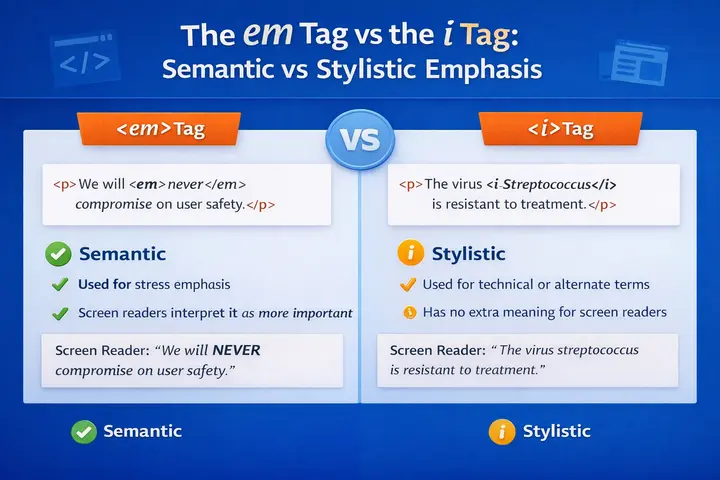
This is one of the most commonly misunderstood areas of HTML and CSS text styling. Both tags render text in italics by default, but they carry very different meanings.
The em Tag and Semantic Emphasis
The <em> tag stands for emphasis. It is a semantic HTML element that tells browsers, screen readers, and search engines that the wrapped text carries stress emphasis. Think of it as the written equivalent of raising your voice on a specific word.
<p>You should <em>never</em> skip accessibility testing.</p>Screen readers will change their tone or inflection when they encounter an <em> tag.
This is critical for users with visual impairments because it preserves the intended meaning of the sentence. Search engines also recognize <em> as a signal of importance, which can support your on-page SEO in a subtle way.
The i Tag and Visual Styling
The <i> tag, or i element, is a purely stylistic tag. It renders text in italics without implying any extra importance or semantic meaning. The HTML specification actually defines appropriate uses for the <i> tag, which include:
- Technical or scientific terms
- Foreign words or phrases
- Ship names (a longstanding typographic convention)
- Titles of works in running text
- Alternate voice or thought in creative writing
<p>The vessel <i>HMS Endeavour</i> set sail in 1768.</p>Best practice: Use <em> when the emphasis changes the meaning of a sentence. Use <i> for visual convention with no semantic weight. And if you just want to style text italic without any HTML meaning at all, use the CSS font-style: italic; property on a class.
Combining Italics with Other CSS Text Styles
Italics rarely work alone. Combining them with other CSS properties adds layers of emphasis and helps important text stand out even more clearly.
Italic and Bold Together
Pairing italic text with bold creates strong visual emphasis that is hard to miss.
strong em {
  font-style: italic;
  font-weight: bold;
}
<p>Please read the <strong><em>Terms and Conditions</em></strong> carefully.</p>Use this combination for critical notices, warnings, or any text bold text that truly needs to stop the reader in their tracks.
Italic and Text Decoration
You can combine font-style: italic; with text-decoration: underline; to differentiate italic links from surrounding italic text. This is useful when your body copy is already italicized, and you need links to remain visually distinct.
.italic-link {
  font-style: italic;
  text-decoration: underline;
  color: #f05a28;
}
Avoid over-decorating text. If too many styles are combined, the result can look cluttered and actually distract the reader rather than direct it.
Font Families and How They Affect Italic Rendering?
Not all fonts handle italics the same way. This is something many developers overlook, and it can quietly break your design.
When you set font-style: italic;, the browser looks for a true italic version of the font you are using. If that italic version exists within the font family, it loads it.
If it does not exist, the browser synthesizes an oblique slant by mechanically tilting the normal font. Synthesized italics often look awkward, especially at larger sizes.
Here is what to watch for:
- Serif fonts like Georgia or Playfair Display tend to have rich, distinctive italic designs. They are a safe choice for body text that will be italicized frequently.
- Sans-serif fonts like Open Sans or Lato typically have cleaner, simpler italic variants that work well in UI contexts.
- Variable fonts offer even more control. With variable fonts, you can fine-tune the degree of slant using font-style: oblique 15deg;, giving you precise control over how oblique or italic the text appears.
When using Google Fonts, always select the italic weight alongside your regular weight.
If you only load the regular variant, the browser will synthesize italics, and the result will look noticeably off compared to the font’s true italic design.
Responsive Italics: Styling Text That Looks Good on Every Device
Italicized text can behave differently on small screens. Certain fonts render their italic variants at smaller sizes, resulting in reduced legibility, especially on low-resolution displays.
Use media queries to adjust font size for italicized passages on mobile:
@media (max-width: 768px) {
  .pullquote {
    font-size: 1em; /* Slightly larger for readability on small screens */
    line-height: 1.9;
  }
}
A few other things to keep in mind for responsive italic text:
- Increase line height slightly for blocks of italic body text. Italics naturally take up a bit more horizontal space at certain sizes, and tighter line heights can make them harder to scan.
- Test your italic styles on actual devices, not just resized browser windows. Rendering differences between iOS Safari, Android Chrome, and desktop browsers can be significant.
- Avoid using large blocks of italic text as the primary body copy on mobile. Reserve italics for short phrases, captions, and emphasis.
Accessibility Considerations When Using Italic Text
Good web design means designing for everyone. Here is how italic text intersects with accessibility.
How Screen Readers Handle Italics?
Screen readers respond to semantic HTML, not visual styling. This is why the difference between <em> and <i> matters so much in practice.
- Text inside <em> tags triggers a change in voice inflection on most screen readers, preserving the stress emphasis for the listener.
- Text inside <i> tags is read in the same tone as surrounding text since it carries no semantic weight.
- Text styled in italics purely through CSS, without a semantic tag, is treated as plain text by screen readers.
Making Italic Text Inclusive
A few practical tips for ensuring your italic usage does not create barriers:
- Never rely on italics alone to convey important meaning. Always pair it with another cue, such as bold text, a label, or surrounding context.
- Maintain sufficient color contrast even when text is italicized. The slant of italic letters can slightly reduce perceived contrast.
Avoid using large blocks of italicized text for important instructions or warnings. Large blocks of italic text are harder to read for users with dyslexia.
Run your pages through accessibility testing tools like WAVE or Axe before publishing to catch any issues with emphasis markup.
Common Mistakes Developers Make When Italicizing Text in CSS
Even experienced developers stumble on these. Here are the most frequent italic-related mistakes and how to fix them.
- Using the i tag for semantic emphasis. If you want to express that a word carries extra importance in a sentence, use <em>, not <i>. The i element has no semantic meaning and will not communicate that importance to screen readers or search engines.
- Italicizing entire paragraphs. Large blocks of italic text are genuinely harder to read. Italics lose their impact when overused and can feel like visual noise instead of meaningful emphasis.
- Forgetting to load the italic font variant. If you load a Google Font without including the italic weight, the browser synthesizes an oblique version that usually looks poor. Always load the specific italic weights you need.
- Ignoring mobile rendering. Italic text can appear noticeably smaller or harder to read on certain mobile devices. Always test across real devices and not just desktop previews.
- Relying on default browser styles. Not all fonts have a default value for italic rendering that looks the way you expect. Always define font-style explicitly in your CSS rather than assuming the browser will handle it consistently across platforms.
Quick Reference: CSS Italic Cheat Sheet
No need to hunt through documentation every time. Here is a quick reference covering all the essential CSS italic values, selectors, and HTML tags you will actually use.
font-style Values
/* Normal upright text */
p { font-style: normal; }

/* True italic using font's italic variant */
p { font-style: italic; }

/* Mechanically slanted text */
p { font-style: oblique; }

/* Variable font oblique with degree control */
p { font-style: oblique 20deg; }
Common Selector Patterns
/* All paragraphs */
p { font-style: italic; }

/* Elements with a class */
.caption { font-style: italic; }

/* A unique element */
#tagline { font-style: italic; }

/* Nested: em inside a blockquote */
blockquote em { font-style: italic; font-weight: bold; }
HTML Tag Reference
| Tag | Type | When to Use |
|---|---|---|
| <em> | Semantic | Stress emphasis that changes meaning |
| <i> | Stylistic | Technical terms, foreign words, ship names, titles |
| CSS class | Visual only | Styling without semantic intent |
Conclusion
Italicizing text in CSS is straightforward once you understand the full picture. The font-style property gives you precise control over how text is slanted, and pairing it with the right HTML tags ensures your styling carries meaning for both humans and machines.
To summarize the key takeaways:
- Use font-style: italic; in an external stylesheet for clean, maintainable code.
- Use <em> when emphasis changes the meaning of a sentence. Use <i> for stylistic conventions such as ship names, foreign words, or an alternate voice.
- Always load the italic variant of your chosen font to avoid browser-synthesized slants.
- Keep accessibility in mind. Never rely on italics alone to convey important text.
- Test your italic styles on mobile devices and across different browsers before publishing.
If you are building or redesigning a website and want every detail, from typography to page speed, handled by experts, Seahawk Media is here to help.
Our team builds high-performance websites that look sharp and rank well. Get in touch with us to talk about your next project.
FAQs About Italicizing Text in CSS
Does italicizing text in CSS affect SEO?
Pure CSS italics have no direct SEO impact. However, using the <em> tag sends a light semantic signal to search engines, indicating that the wrapped text carries importance on the page.
Why is my CSS italic style not showing up?
A more specific rule is likely overriding it. Open browser dev tools, inspect the element, and check which styles are crossed out. A missing stylesheet link or typo in the value can also cause this.
Should I use em, i, or CSS to italicize text?
Use <em> for meaningful emphasis that affects sentence meaning. Use <i> for visual conventions like foreign words or ship names. Use a CSS class for purely decorative italics.
What is the difference between font-style italic and oblique?
Italic uses the font’s true designed slant. Oblique artificially tilts the normal font. Always use italic when your font has a dedicated italic variant.


